

WebberZone Image Optimizer registers WP-CLI commands under wp wzio, useful for converting a library from a script, cron job, or deployment step without opening the admin screens.
wp wzio status
Shows which drivers and formats this server can encode, the currently configured formats, and how much of the library is converted. It also reports original encoder availability, original bytes saved, backup disk use and the number of resized main files, plus the disk space used by optimized copies with a per-format breakdown.
The Original encoders line reports jpeg and png availability. PNG originals require a successful local-tool probe; WebP/AVIF support is checked separately. WP-CLI and web requests may use different PHP configurations. See PNG server setup and troubleshooting.
wp wzio convert
Converts one or more attachments immediately.
<id>...— attachment IDs to convert. Omit to convert everything not yet handled.--outdated— select attachments whose copies have different recorded quality, effort, metadata stripping or PNG lossless/fallback settings, then re-encode affected copies. Copies without a settings record are left alone. This mode does not compress originals or detect every setting change.--forcetakes precedence when both flags are supplied.--force— re-encode even when an up-to-date optimized copy already exists. Without it, it keeps and records an existing copy that is newer than its source and meets the minimum saving, including one written by another plugin.--formats=<formats>— comma-separated list of formats to generate, overriding the settings.--dry-run— report what would be converted without writing anything.
If any copy needed a lower quality than configured to come out smaller than the original, the command says so at the end: “N optimized copies needed a lower quality than configured to come out smaller than the original.” See Minimum saving (%) in Image Optimizer Settings for how that retry works.
wp wzio compress
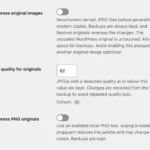
Compress served JPEG/PNG originals with mandatory backups, then rebuild affected sidecars. This command explicitly enables original compression for the run even when Compress original images is off, and can process previously restored attachments again. PNGs still require Compress PNG originals and a working local tool. JPEG quality, selected image sizes, exclusions and metadata settings continue to apply.
--ids=<ids>— comma-separated attachment IDs; omit to scan the whole library.--dry-run— list candidates without changing files, records or the queue. Savings and encoding eligibility are determined during the actual run.--resize— resize main files to the configured maximum dimension; requires a positive cap and scaling enabled. Without this flag, the command does not request resizing.
wp wzio restore-originals
Restore backed-up files and dimensions, then queue sidecar-only regeneration.
Specify --ids or --all. Failed restorations keep recovery data and produce a nonzero exit status. Delete optimized copies remains separate from original restoration.
wp wzio queue
Adds every unconverted attachment to the background queue, the same queue the Bulk Optimize screen uses.
--outdated— queue attachments with copies affected by the tracked encoding settings described underwp wzio convert. The worker re-encodes affected copies without compressing originals.--forcetakes precedence when both flags are supplied.--force— re-queue attachments that already have a conversion record, and re-encode their copies when the queue processes them, the same as Re-optimize images that are already done on the Bulk Optimize screen.
The scan walks the library in pages of 500 attachments with no time limit, unlike the Bulk Optimize screen, which has to build the queue across several time-bounded passes to stay inside the PHP request limit. Queuing also schedules the background worker, so the queue starts draining on its own if Process the queue in the background is enabled. See How the Queue Works.
wp wzio run
Works through the queue in the current process, batch after batch, until the queue is empty. Useful in a deployment step or a system cron job on a site where WP-Cron is disabled.
--batch=<size>— attachments per batch. Defaults to the Images per batch setting on the Advanced tab.--max-batches=<count>— stop after this many batches. Defaults to running until the queue is empty.
Each batch reports how many were converted, skipped and failed, and how many remain. Only one worker can hold the queue lock at a time. If a background batch is already running, the command exits with “Another worker holds the queue lock” rather than processing the same rows twice. Wait a moment and run it again.
wp wzio clean
Deletes the generated WebP and AVIF files. Your original images and their backups are never touched; use wp wzio restore-originals to restore compressed originals.
<id>...— attachment IDs to clean. Omit to clean every attachment that has a conversion record.--yes— skip the confirmation prompt.
With IDs, only those attachments’ generated files are deleted and their queue rows removed. Without IDs, every generated file on the site is deleted and the entire queue table is emptied, including the completed rows — a full reset. The records of the deleted copies are removed with the files, so the Bandwidth saved and Optimized copies occupy totals on the Bulk Optimize screen no longer count them. Original-compression records and backups are kept.
 Popular Authors Template Tags, Hooks, and CSS
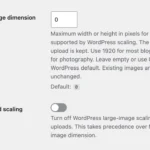 Image Optimizer Settings
 Compressing and Restoring Original Images
 WP-CLI commands in Top 10 Pro