

The Bulk Optimize screen in WebberZone Image Optimizer converts your existing media library. Find it at Media → Bulk Optimize.
How it works
The screen works through a database-backed queue one batch at a time rather than in a single long request, so a large library cannot trip the PHP time limit. Building the queue is time-bounded too. Start optimizing scans the library in passes of about ten seconds, each picking up where the previous one stopped, so a large library shows “Building the queue…” for a moment instead of timing out. Closing the tab loses nothing, because the queue lives in the database. If Process the queue in the background is enabled on the Advanced settings tab, a background worker carries on, and reopening the screen resumes where it stopped. See How the Queue Works for the full mechanics.
The screen
Eight cards summarize your library:
- Original bytes saved — bytes saved by original compression, compared with the backups.
- Backups occupy — disk space used by original backups.
- Main images resized — number of main files resized by original optimization.
- Images in the library — total convertible attachments.
- Already optimized — attachments with at least one generated file.
- Waiting in the queue — attachments still pending.
- Bandwidth saved — total bytes saved. Once at least one image has been converted, shows the percentage saved of the total original size: “Bandwidth saved of X originally (Y%)”.
- Optimized copies occupy — disk space used by the generated copies, broken down by format (for example, “WebP 4 MB, AVIF 2 MB”).
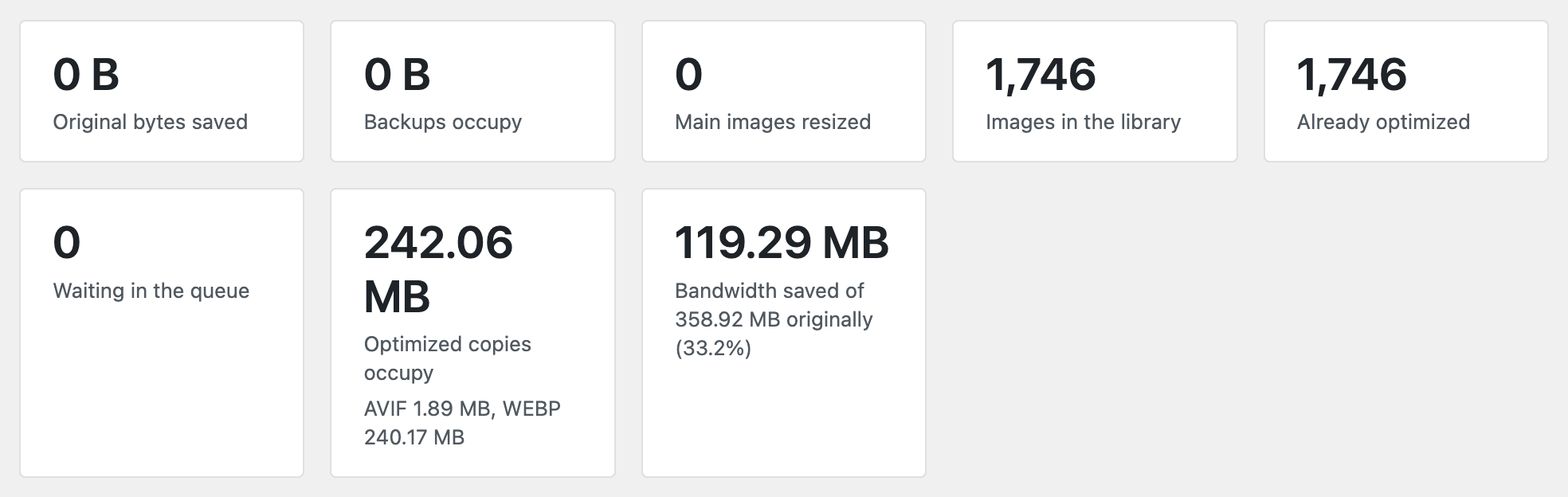
Images in the library and Already optimized are counted across the whole library, so both are cached rather than recounted after every batch — the library total for an hour, the optimized total for a minute. Bandwidth saved and Optimized copies occupy are totaled from each image’s own conversion record, so they include images converted on upload, from the Media Library or with WP-CLI, not only those processed by the queue. They are also cached for a minute. Uploading or deleting an image clears these caches immediately, as does starting a scan or clearing the queue. Waiting in the queue is read from the queue itself and is always current. If Already optimized looks a minute behind during a long run, that is the cache, not a stalled queue.
Start optimizing builds the queue (if it is empty) and begins working through it. Pause stops the current run without losing progress. Clear queue removes attachments that are still waiting or in progress. Completed rows and existing copies are kept, and Bandwidth saved is unaffected.
Three checkboxes change what the next run covers. Only one can be selected at a time.
- Re-optimize images that are already done re-encodes every image, even ones with an up-to-date copy.
- Retry skipped and failed images clears every recorded skip and failure, then queues those images again. A skip is, for example, a copy that came out larger than the original, or a format no encoder was available for. Existing copies are kept.
- Regenerate only images made with older settings queues only images whose copies were made with different recorded quality, effort, metadata stripping or PNG lossless/fallback settings, so you don’t need to re-encode the whole library after changing a setting. Copies made before version 1.2.0 have no settings record and are left alone; use Re-optimize images that are already done for those.

Selective regeneration re-encodes affected copies within the selected attachments. It does not compress originals or detect every plugin setting change.
With original compression disabled, a normal run keeps usable copies, including those written by another optimizer. If original compression changes a source, its modern copies are rebuilt. Existing copies are kept and recorded, and only the missing formats and sizes are encoded. That is why a library moving over from another plugin optimizes much faster than a fresh one. See Migrating from Another Image Optimizer.
Failures
An image that fails is retried a few times and then listed under Images that could not be optimized, with the reason for each failure. The most common reason is a server that cannot encode the requested format. A size that would miss the minimum-saving threshold is not an immediate failure. It is first retried once at a lower quality, and the Media Library notes any copy kept that way. See Minimum saving (%) in Image Optimizer Settings.
Configuring the run
Images per batch and Process the queue in the background are set on the Advanced tab of the settings screen — see Image Optimizer Settings.
When images are queued but the background worker has stopped running, the screen shows a warning naming DISABLE_WP_CRON or a blocked loopback request as the likely cause, with the WP-CLI and system cron commands that recover it. The warning appears only after 15 minutes pass with no worker run, and clears as soon as one runs. See How the Queue Works for how the plugin tells a stalled queue from a quiet site.
Original-file statistics
Original savings compare the first backup with the current source. Sidecar savings compare the compressed source with its smallest modern copy. Backup storage is a separate disk cost, not bandwidth saved.
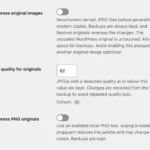
Enable original compression and optional resizing in General settings before starting a run. To include attachments already processed, select Re-optimize images that are already done. Restored originals remain excluded from automatic recompression until an explicit per-image Optimize action or wp wzio compress is run.

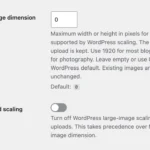 Image Optimizer Settings
 Compressing and Restoring Original Images
 How the Queue Works in WebberZone Image Optimizer