

WebberZone Image Optimizer settings live at Media → Image Optimizer, across four tabs: General, Quality, Delivery and Advanced.
General
Formats to generate Choose WebP, AVIF or both. AVIF files are smaller than WebP but take longer to encode and are understood by slightly fewer browsers. Generating both lets each visitor receive the smallest file their browser can read. A format your server cannot encode is listed as unavailable. Default: WebP only.
Convert new uploads Generate the optimized copies as soon as an image is uploaded or its thumbnails are regenerated. Default: on.
Image sizes to convert Leave every box unchecked to convert all sizes, which is what you want unless disk space is tight. Missing intermediate copies are omitted from the optimized srcset, but the smallest and widest or highest-density copies must exist before that format is offered. Excluding either edge size used by your theme can therefore disable that format for those images. Default: all sizes (nothing excluded).
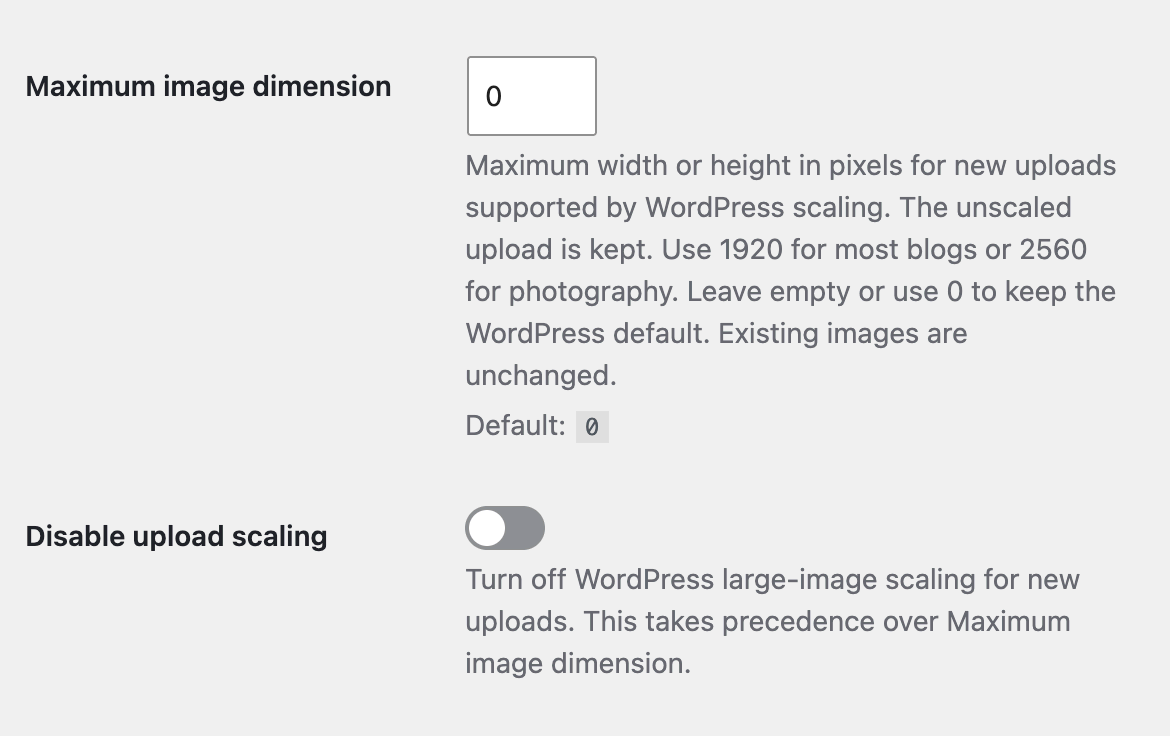
Maximum image dimension Set the maximum width or height, in pixels, for new uploads supported by WordPress large-image scaling. WordPress keeps the unscaled upload and serves a scaled copy, which the plugin uses to generate WebP and AVIF copies. Consider 1920 for most blogs or 2560 for photography. Empty or 0 preserves the WordPress threshold (normally 2560), including changes made by other filters. Existing images are unchanged. Supported formats depend on your WordPress version and image editor. Default: 0.
Disable upload scaling Turn off WordPress large-image scaling for new uploads. This takes precedence over Maximum image dimension. A later site filter can override either setting. Default: off.
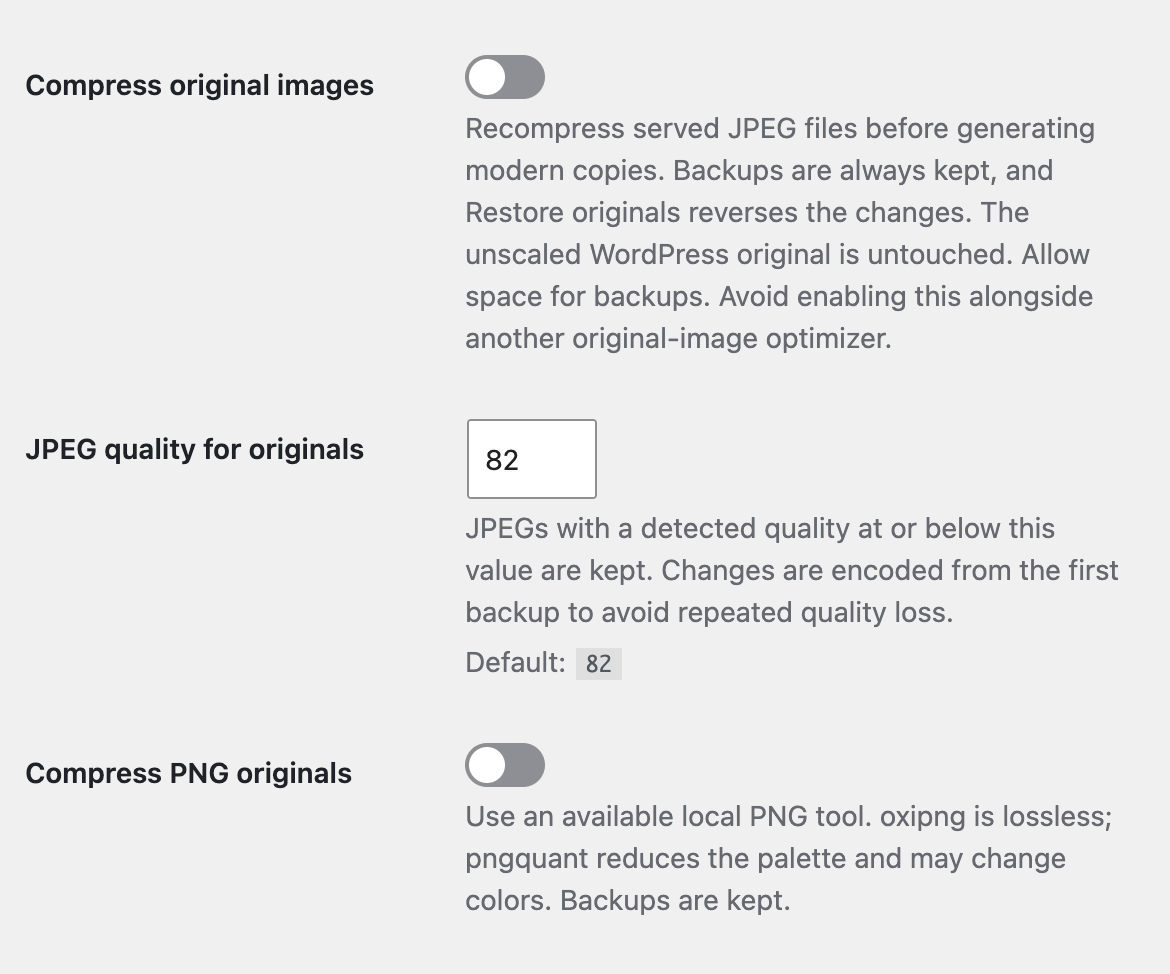
Compress original images Recompress served JPEG files before generating WebP/AVIF copies. This is off by default. Each changed file has a verified backup, and Restore originals reverses the changes. The unscaled upload kept by WordPress is untouched. Use original compression in only one optimizer at a time. Default: off.
JPEG quality for originals Target quality from 1 to 100. When Imagick can detect a JPEG’s existing quality, files already at or below the target are kept unless resizing is requested. GD cannot detect that quality; repeat runs use the recorded settings and first backup to avoid accumulated recompression. Default: 82.
Compress PNG originals Disabled until a successful compression probe using a local PNG tool, with installation guidance shown in its place. Requires Compress original images, an executable in a supported path and PHP process execution. The plugin prefers lossless oxipng; it selects palette-reducing pngquant only when no executable oxipng is found. It does not switch to pngquant when an installed oxipng fails. Animated PNGs are not modified. PNGs with an ICC profile are kept when pngquant is selected. Default: off. See PNG server setup and troubleshooting.
Resize existing originals Resize the served main file to Maximum image dimension while optimizing. Requires Compress original images, a positive maximum dimension and upload scaling enabled. PNG resizing also requires PNG original compression. Files within the cap are not resized. Existing thumbnail files and metadata remain available for embedded URLs; wider thumbnails are excluded from generated responsive candidates while the main image is resized. Default: off.
Original compression and resizing run when an attachment is processed. Changing a setting does not enqueue the existing library automatically; use Bulk Optimize with Re-optimize images that are already done, or wp wzio compress. See Compressing and Restoring Original Images for backups, restore and server requirements.
Minimum saving (%) Discard an optimized copy unless it is at least this much smaller than the original. Small or already-compressed images frequently grow when re-encoded, and keeping those wastes disk space for no benefit. The same threshold decides whether a copy inherited from another optimizer is kept or replaced. Default: 5. Range: 0–90.
A lossy copy that misses the threshold is not thrown away immediately — it is retried once at a lower quality, giving that size another chance to be served. The retry drops the configured quality by 15%, rounded, and never goes below quality 40: WebP at 82 retries at 70, AVIF at 50 retries at 42. A copy that still misses the threshold after that retry is discarded. Lossless copies are never retried at a lower quality — they use the PNG lossy fallback quality below instead — and neither are formats whose encoder on your server ignores the quality setting — some ImageMagick builds do this for AVIF, where a retry would spend a second encode producing an identical file. When a copy is kept after a retry, the Media Library and wp wzio convert both say so. Developers can adjust or switch off the retry with the wzio_conversion_retry_step filter — return 0 to disable it.
Optimized file naming Controls how the generated WebP/AVIF file is named. Append the new extension (photo.jpg.webp) is the safe default — every file has a unique name and nothing can collide. Replace the extension (photo.webp) produces shorter filenames but can collide if the same folder contains both photo.jpg and photo.png, silently overwriting one optimized copy with the other. Only choose Replace if you are sure your uploads never share a filename across extensions. Default: append.
This setting also decides whether optimized copies written by a previous plugin are found. When the plugin detects copies named the other way round it offers to switch for you — see Migrating from Another Image Optimizer.
Quality
WebP quality Between 1 and 100. Default: 82, which is visually indistinguishable from the original for most photographs. Values above 90 grow the file quickly for very little visible gain.
AVIF quality Between 1 and 100. Default: 50. AVIF and WebP quality numbers are not comparable: AVIF at 50 looks about the same as WebP at 82 while producing a noticeably smaller file.
WebP encoder effort Between 0 and 6. Default: 6. Higher values spend more CPU time searching for a smaller file at identical visual quality. Because conversion happens once and the result is served many times, the highest setting is usually the right trade — lower it if bulk runs are timing out.
AVIF encoder effort Between 0 and 6. Default: 4. This is a relative scale, not an encoder setting: each backend maps it onto its own speed range, so the same number can mean different work on different servers. The default sits at the measured point where files stop getting meaningfully smaller — raising it costs a great deal more CPU for very little, and lowering it below the default trades a few per cent of file size for a lot of speed. A source that can carry transparency is never taken to the fastest setting, where its file can grow by two fifths. The measurements behind the default, and the per-driver mapping it uses, are recorded in How AVIF Encoder Speed Is Chosen.
Strip metadata Remove EXIF, GPS and embedded thumbnails from the optimized copies. The color profile is always kept, so colors will not shift. The same metadata setting applies when optional original compression is enabled; backups retain the original bytes. Default: on.
Lossless for PNG sources Encode the WebP copy of a PNG source without any quality loss. Right for logos, screenshots and line art; produces much larger files for photographs saved as PNG. Default: on.
This applies to WebP only. A lossless AVIF is almost always larger than the PNG it came from — on a representative sample it was too large to keep for every screenshot and graphic tested — so PNG sources are encoded to AVIF at the configured AVIF quality instead.
PNG lossy fallback quality When the lossless WebP copy of a PNG misses the minimum saving, it is encoded once more as a lossy WebP at this quality, and kept only if that copy reaches the minimum saving. PNGs that were already reduced to a small color palette, as many PNG compression tools do, leave lossless WebP almost nothing to remove and usually need this. The fallback is the lowest quality a PNG copy is ever encoded at: the lower-quality retry described above never follows it. Set it to 0 to never encode a PNG lossily, skipping any that lossless WebP cannot shrink. Lossy copies made before you changed it stay in use until you run Bulk Optimize with Re-optimize images that are already done. This setting applies only while Lossless for PNG sources is on; with it off, PNGs are encoded at the WebP quality like any other image. Default: 95.
PNGs skipped before this setting existed, or skipped at a higher fallback quality than the one now set, are tried again the next time their attachment is processed.
Delivery
Serve optimized images Wrap images in a <picture> element so the browser picks the best format it supports. Because the choice is made by the browser rather than the server, this works correctly behind page caches and CDNs. Default: on.
Post content images Rewrite images embedded in post and page content. Default: on.
Theme and block images Rewrite featured images, gallery images and any image rendered by a theme or block through the WordPress image functions. Default: on.
Whole page (buffered) Catch images printed directly by a page builder or a hard-coded template by buffering the entire page and rewriting it before it is sent. This catches the most images but costs a little memory on every request — leave it off unless you can see images the two options above are missing. Requires WordPress 6.9 or later, which provides the output buffer this option uses; on older versions the option is grayed out. Default: off.
CSS background images The Delivery tab generates ready-to-paste Apache and nginx rules for images referenced from a stylesheet, where the browser is never offered a choice by the plugin itself. Both blocks send a Vary: Accept header — do not remove it, or a CDN or page cache can hand a WebP file to a browser that cannot display it.
- Apache or LiteSpeed — if the
.htaccessfile is writable by PHP, use the Add to .htaccess / Remove from .htaccess buttons to install the rules with one click. If the file is not writable, copy the generated block above the WordPress rules in.htaccessby hand. - nginx — add the generated block to your server configuration and reload.
Advanced
Images per batch How many attachments to process in a single bulk step. Default: 10. Range: 1–200. Lower this if your server times out during a bulk run; raise it to finish faster on a fast server.
Process the queue in the background Keep working through the queue on a schedule even when the Bulk Optimize screen is closed. Turn this off if you would rather the queue only advance while you watch it. Default: on. See How the Queue Works for what runs a batch and how retries are handled.
Queue images on first view When a page references an image that has not been converted yet, serve the original immediately and add the image to the queue. Nothing is ever converted during a page render, so visitors never wait for an encode. Default: on.
Exclude paths One fragment per line. Any image whose path inside the uploads folder contains one of these fragments is left alone — for example 2019/07 or /logos/. Default: empty.
Delete optimized files on uninstall Remove every generated WebP and AVIF file when the plugin is deleted. Compressed original images are left as they are either way. Leave this off if you may reinstall later and would rather not convert everything again. Default: off.
Delete settings and records on uninstall Remove the settings, the queue table and the per-image conversion records when the plugin is deleted. Restore records for original backups are kept while the backups exist. Default: off.
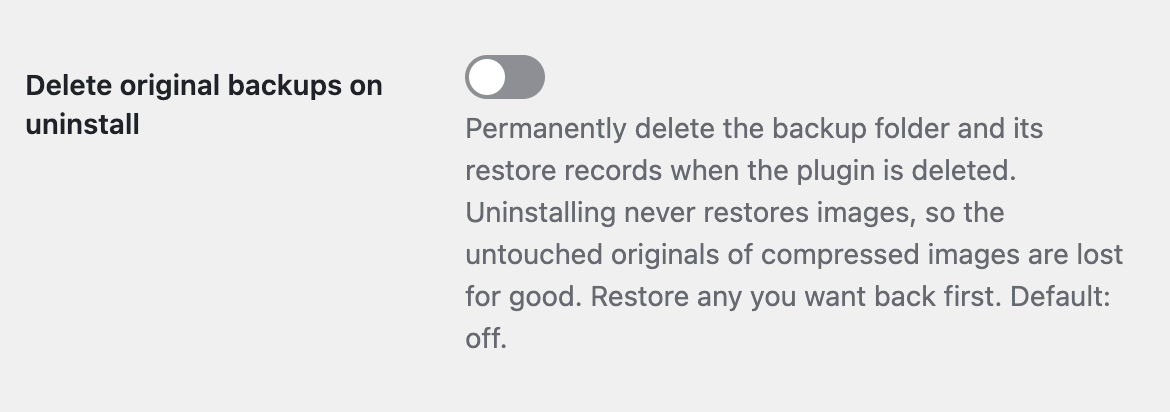
Delete original backups on uninstall Permanently delete the original-image backup folder and its restore records when the plugin is deleted. Uninstalling never restores images, so the untouched originals of compressed images are lost for good; restore any you want back first. Default: off.

 Top 10 – Tools Admin Screen
 Top 10 Settings – Features
 Efficient Content Storage and Indexing (ECSI) in Contextual Related Posts Pro and Better Search Pro