

WebberZone Image Optimizer adds a status column and per-image actions to the Media Library list view (Media → Library, list mode) for every image it can optimize.
The Optimized column
- — — the file is not an image type the plugin can optimize.
- Not yet optimized — the image is convertible but has not been processed yet.
- Queued — the image is waiting in the queue.
- Failed — the last attempt failed. Use Retry to try again.
- Original kept: no copy came out smaller — every size was processed, but no WebP or AVIF copy beat the original, so the original is served.
- N sizes converted to WebP / AVIF with Total savings Y% — one line per format, then the percentage saved across the attachment.

The Details link opens a table with one row per image size: its dimensions, the original file size, and the size and saving of each WebP or AVIF copy. A size that was not converted shows why, such as Larger than original, Not supported or Size not selected in settings. The table ends with the combined totals, the total saving and when the image was last optimized.
When any optimized copy had to be encoded below the configured quality to come out smaller than the original, the column adds a note — “N copies needed a lower quality to come out smaller than the original” — so a lower-quality result is never silent. See Minimum saving (%) in Image Optimizer Settings for how that retry works.
Filtering by status
A status dropdown at the top of the list view filters the library by optimization status:
- All optimization statuses — the default, no filtering.
- Optimized — has at least one generated WebP or AVIF file.
- Not yet optimized — a convertible image with no finished conversion record.
- Skipped — nothing to convert, either because the image is already covered or excluded.
- Failed — conversion failed after the retries were exhausted.
Only image attachments ever appear under these options — video, audio and document files are left out of every filter. The dropdown is shown only while the Optimized column itself is visible: hiding the column in Screen Options hides the filter as well.
Row actions
Hover an image row to reveal:
Optimize Converts whatever this attachment is still missing, without waiting for a bulk run — a size with no optimized copy yet, or one whose copy is older than its source. A usable copy is normally kept. When original compression is enabled, this action also processes eligible originals and rebuilds copies if the source changes. It can compress a previously restored attachment again. Recorded sidecar skips are normally kept; skips eligible for the plugin’s compatibility retries may be attempted again. To re-encode an attachment that is already done, after changing the quality settings for example, use Re-optimize images that are already done on the Bulk Optimize screen or run wp wzio convert --force.
Retry Shown when any size of the attachment was skipped or failed. Clears those results and converts the image again, so a copy that came out larger than the original, a format that had no encoder at the time, or a failed size gets another attempt. Existing copies are kept. To do this for every affected image at once, use Retry skipped and failed images on the Bulk Optimize screen.
Delete optimized copies Deletes the generated WebP/AVIF files for this attachment and reverts it to serving the original. Only shown once an attachment has at least one generated file. This action does not restore compressed originals or delete their backups. Use Restore originals to recover the backed-up source files.
These actions require the edit_post capability for that attachment. Successful optimization reports “Image optimization completed.” Deleting copies reports that the optimized copies were deleted. Original restoration reports “Original files and dimensions restored. Modern copies will be rebuilt without recompressing originals.”
The attachment edit screen
Opening a single attachment (Media → Library → click an image) shows the same summary at the bottom of the Save box, below the file details, including the Details link. The Optimize, Retry and Delete optimized copies links are there too, so you can optimize an image or delete its modern copies without going back to the list view. Restore originals also appears while the attachment has backups.
Original compression and restore
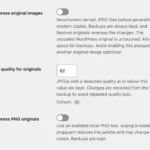
When original compression is enabled, the Optimized column adds the number of compressed sizes and any main-file dimension change. Details includes a Compressed column with before/after bytes or the reason the original was kept.
Restore originals appears in row actions and the Save box while backups exist. It is also available as a Media Library bulk action. It restores files and dimensions, removes successfully restored backups and queues modern copies for regeneration without immediately compressing the originals again. Delete optimized copies continues to remove sidecars only and keeps these backups.
An explicit per-image Optimize action can compress a restored attachment again. See Compressing and Restoring Original Images.
 Image Optimizer Settings
 Compressing and Restoring Original Images
 Bulk Optimize in WebberZone Image Optimizer
 WebberZone Image Optimizer WP-CLI