

If your site already runs ShortPixel, Imagify, EWWW Image Optimizer or a similar plugin, the WebP and AVIF files it generated are ordinary files sitting next to your originals. WebberZone Image Optimizer can serve those existing files as they are. There is no import step, nothing is renamed, and nothing is converted a second time.
Why no import is needed
Every plugin that writes optimized copies to your own server — including this one — decides what to serve by looking for the file on disk. None of them consult a database record at the moment a page is rendered. That means the files themselves are the migration: once this plugin looks in the same place the previous one wrote to, those copies start being served.
The one thing that has to line up is the file naming. There are two conventions in use:
- Append —
photo.jpggainsphoto.jpg.webp. Used by Imagify, and the default in EWWW Image Optimizer and in this plugin. - Replace —
photo.jpggainsphoto.webp. The default in ShortPixel, and an option in EWWW Image Optimizer.
If the naming does not match, the existing copies are invisible to this plugin and your site quietly falls back to serving the original JPEG or PNG.
Matching the naming
The plugin checks for this. It samples up to 100 images that have no conversion record of its own, looks for copies under both conventions, and if it finds a substantial number under the convention you are not using, it offers to switch. The prompt appears on Media → Library, Media → Bulk Optimize and the settings screen, with a count of what it found and a single button.
The scan runs after the page has been sent to your browser, so the first visit to one of those screens after activation shows no prompt — reload once and it is there.
You can also set this by hand with Optimized file naming on the General tab — see Image Optimizer Settings. Switching to Replace carries a caveat worth reading before you accept the prompt: if a folder ever holds both photo.jpg and photo.png, their optimized copies collide on a single photo.webp.
The same naming can also collide with an image you uploaded yourself. If photo.jpg and an unrelated photo.webp both exist, the plugin compares the dimensions of the two files, recognizes that the WebP is not a copy of the JPEG, and leaves it alone — it is neither served in the JPEG’s place nor overwritten.
The order to do it in
Do this before deactivating the old plugin, not after. While the old plugin is active it is still serving its own files through its own rewriting. The moment it is switched off, delivery falls to this plugin, and a naming mismatch at that point means an unoptimized site until you notice.
- Install and activate WebberZone Image Optimizer.
- Open Media → Library. If the naming prompt appears, read it and accept the switch.
- Check a few pages on the front end and confirm the
<picture>element is pointing at the existing WebP files. - Deactivate the old plugin.
- Remove any server rules it installed.
- Run Media → Bulk Optimize once.
Never use the old plugin’s restore tool
ShortPixel, Imagify and EWWW Image Optimizer all keep a backup of your original images and offer a way to restore them. That is the one action that deletes the optimized copies. Deactivating or deleting a plugin leaves the generated files on disk; restoring originals removes them, and you lose everything you are trying to carry across.
The same applies to any “remove all WebP files” or “revert optimization” tool in the old plugin. There is no need to clean up before switching.
Server rules left behind
Plugins that serve their copies by inspecting the Accept header write rewrite rules into .htaccess, and deactivating the plugin does not always remove them. ShortPixel writes a block marked ShortPixelWebp, and can place it in the site root, in wp-content and in the uploads folder. EWWW Image Optimizer and Imagify write their own blocks.
A leftover block points at the naming the old plugin used and runs ahead of anything this plugin does. Search your .htaccess files for those markers and remove the blocks before adding the rules from the Delivery tab.
What each plugin leaves behind
| Plugin | Where the copies are | Naming |
|---|---|---|
| ShortPixel Image Optimizer | Next to the original | Replace (photo.webp) by default |
| Imagify | Next to the original | Append (photo.jpg.webp) |
| EWWW Image Optimizer | Next to the original | Append by default, Replace optional |
| Smush | Free version writes no local copies | — |
| Optimole | Nothing local — images are served from its CDN | — |
Smush’s WebP and AVIF modules are paid features, so a site on the free version has nothing on disk to carry over. Smush Pro writes to a mirrored folder rather than next to the original, which this plugin does not read; those sites start from scratch. Optimole rewrites image URLs to its own CDN and stores nothing on your server.
These are the defaults as of August 2026. Check the naming setting in the plugin you are leaving if you are reading this later.
Running the bulk conversion afterwards
A bulk run after migrating is fast, because an optimized copy that is already up to date is kept rather than re-encoded. For each image and each format the plugin keeps the existing file when it is newer than its source and meets the Minimum saving (%) threshold, and records its size so the Media Library totals and the uninstall routine both account for it.
What the run does spend time on is the formats the old plugin never produced. ShortPixel and Imagify sites typically arrive with WebP but no AVIF, so the WebP files are adopted untouched and only the AVIF files are encoded.
To replace the inherited copies with copies encoded at your own quality settings, use Re-optimize images that are already done on the Bulk Optimize screen, or wp wzio convert --force.

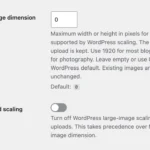 Image Optimizer Settings
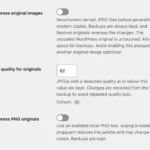 Compressing and Restoring Original Images
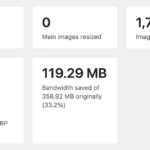 Bulk Optimize in WebberZone Image Optimizer
 Migrating from the Popular Authors Plugin