

WebberZone Image Optimizer can optionally compress the served JPEG and PNG files as well as generate modern-format copies. This reduces the files used by social previews, direct links and other requests that do not use the plugin’s <picture> delivery.
Enable original compression
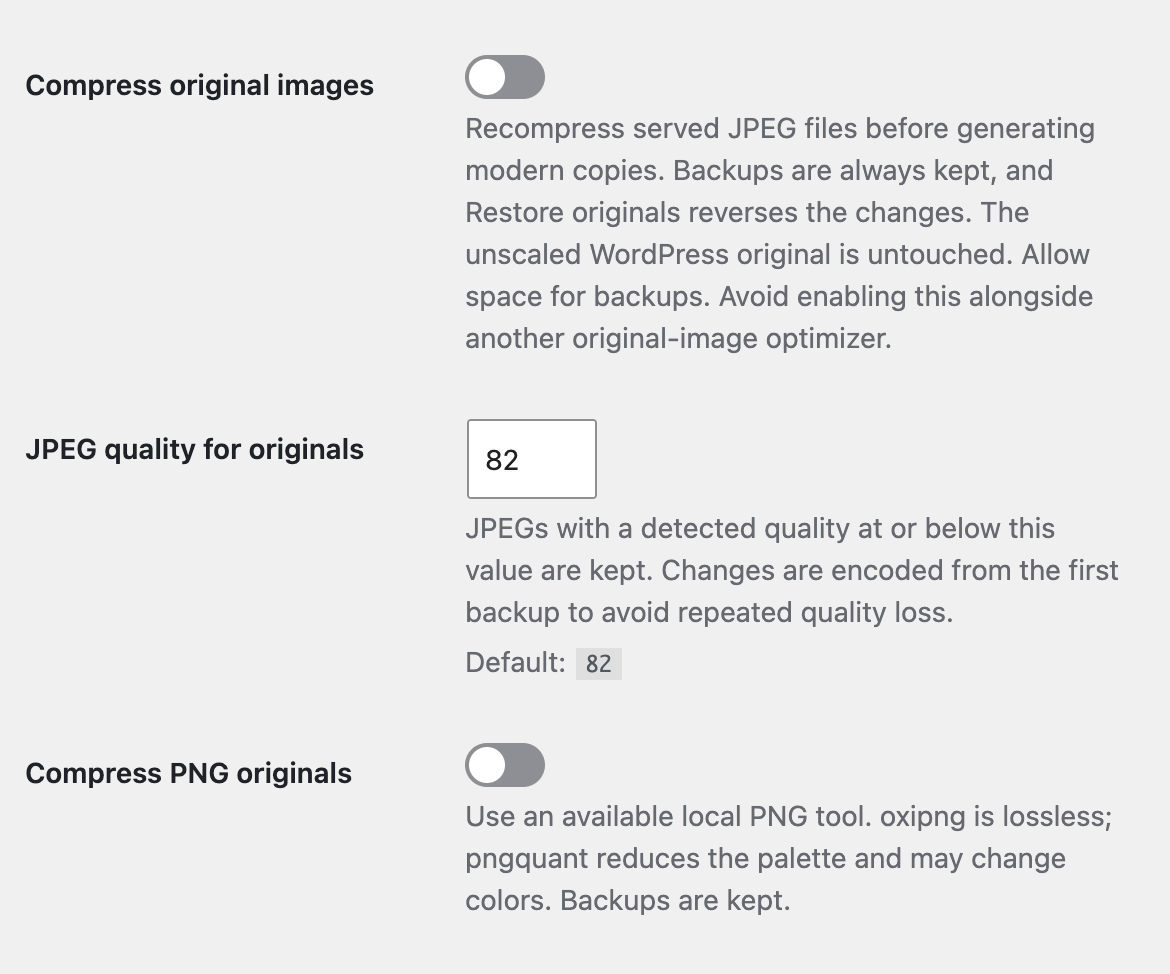
In Media → Image Optimizer → General, enable Compress original images and choose JPEG quality for originals. JPEG encoding uses Imagick when it works, with GD as a fallback. PNG compression requires a verified local oxipng or pngquant executable and PHP process execution. The plugin checks /usr/bin, /usr/local/bin and /opt/homebrew/bin; it does not download tools. Unsupported originals stay unchanged. PNGs with an embedded ICC profile require oxipng; they are kept unchanged when only pngquant is available, to avoid applying the wrong profile after palette conversion.
Original compression uses the same selected image sizes and exclusions as sidecar conversion. WordPress’s unserved original_image file is never compressed. The served -scaled file is eligible.
Each file is backed up before its first change. The pipeline then resizes the main file if requested, compresses it and generates sidecars from the resulting source. A replacement must meet Minimum saving (%) before it can replace the served file. Repeated runs with the same settings keep the result; changed settings encode from the first backup.
Changing settings does not start a library-wide job. Use Bulk Optimize → Re-optimize images that are already done or wp wzio compress to process existing attachments.
Set up PNG original compression
PNG original compression runs automatically when an eligible attachment is processed, once both Compress original images and Compress PNG originals are enabled. Both settings default to off. JPEG original compression uses Imagick or GD and does not require a PNG executable. Generating WebP or AVIF copies of PNG sources also does not require oxipng or pngquant.
Ask your host to enable it
On managed or shared hosting, send your host this request:
Please install oxipng for local PNG compression in WebberZone Image Optimizer. The plugin looks for an executable named
oxipngin/usr/bin,/usr/local/binor/opt/homebrew/bin. It must be executable by the PHP process serving WordPress. PHP must provideproc_open,proc_get_statusandproc_terminate, and permit the executable to run. Please verify this in the website’s PHP runtime as well as any separate cron or WP-CLI runtime. The plugin needs writable temporary storage and permission to create backups and replace selected files in the uploads directory.
The plugin prefers oxipng, which compresses without changing pixels. If your host supplies only pngquant, it reduces the palette and may change colors. PNGs with an embedded ICC profile are left unchanged when pngquant is the selected tool. Animated PNG originals are not modified.
If your host does not permit process execution, PNG original compression is unavailable. You can still generate modern-format copies using working GD or Imagick encoders and compress JPEG originals where supported.
If you administer the server
Install oxipng using the installation method supported by your server’s operating system. Place the executable in one of the three directories above, with the exact filename oxipng, and ensure the WordPress PHP user can execute it. Installing the tool only on your own computer does not enable it on a hosted site.
The plugin checks those fixed paths rather than searching the shell’s PATH. A tool that works in an SSH session may therefore remain unavailable to WordPress. Confirm that the web PHP runtime can launch it and that hosting restrictions do not block access to the executable or uploads directory. The plugin does not download or install server tools.
Servers that restrict PHP with open_basedir
If PHP’s open_basedir setting excludes the folder holding the tool, as many managed stacks do, the plugin cannot see it and the Media Library shows a notice naming open_basedir. Either add the executable’s path to open_basedir, or copy the binary (not a symlink, which PHP resolves to its real location) into an allowed folder that the PHP user cannot write to, and point the plugin at it with the wzio_png_tool_paths filter, for example from a must-use plugin:
The file must be named oxipng or pngquant. Paths are checked in order and the first executable one is used.
Enable and verify compression
- Reload Media → Image Optimizer → General after the host has installed the tool. Compress PNG originals becomes available only after the plugin successfully compresses its test PNG. Until then it is shown disabled, with installation guidance.
- Enable Compress original images and Compress PNG originals, then save the settings.
- Run Optimize on a PNG attachment and open Details. The Compressed column shows before/after sizes or why the original was kept.
- To process previously optimized images across the library, use Re-optimize images that are already done on Bulk Optimize. Saving settings does not start that job.
An available tool does not guarantee that every PNG becomes smaller. A replacement must meet Minimum saving (%), which defaults to 5. Unsupported or ineligible originals stay unchanged.
If the PNG setting stays disabled
Ask your host to check the executable’s exact path, PHP-user permissions and process functions in the web runtime. The availability check performs a real encode, so finding a file on disk is not enough. Check writable temporary storage and whether the tool exits successfully before retrying.
The plugin caches its original-encoder probe. A change in the detected executable path triggers another probe. If the host repairs a tool at the same path and the setting remains disabled, an administrator with WP-CLI access can clear only that cached report:
Then reload the General settings tab to run the probe again. On multisite, target the affected site with WP-CLI’s --url argument.
You can also run wp wzio status and inspect Original encoders for "png":true. A successful command-line check does not prove the web PHP runtime has the same permissions or configuration.
Resize existing main files
Set a positive Maximum image dimension and enable Resize existing originals. Both dimensions fit within that cap, with the aspect ratio preserved. This step only affects the main attached file. Smaller files are not enlarged. PNGs require Compress PNG originals and a working PNG tool.
Existing thumbnail files are retained so embedded URLs continue to work. Oversized thumbnails are omitted from responsive srcset candidates generated through WordPress while the main file is resized. A directly embedded thumbnail URL still serves that thumbnail, so this setting is not a cap on every previously published image URL.
Stored post content is not rewritten. Existing width/height attributes retain their old values. Since the aspect ratio is preserved, responsive layouts generally keep the same proportions, but fixed-size markup can display the resized file larger than its new intrinsic resolution. Review layouts that use fixed full-size dimensions.
Backups and protection
Backups live in uploads/wzio-originals/ using the source’s relative path. They are mandatory and never replaced by a compressed version. Allow enough disk space for a full copy of every selected source. Bulk Optimize and wp wzio status show backup storage separately from original and sidecar savings.
The plugin writes an index file plus Apache/LiteSpeed and IIS deny rules. nginx does not read .htaccess; add an equivalent rule to the server configuration and reload nginx:
Custom web-server configurations must also deny direct access to this directory. Include the backup directory and WordPress database in site backups; both are needed for automatic restoration.
Restore originals
Use Restore originals from an attachment’s row actions, its Save box or the Media Library bulk actions. The command-line equivalent is:
Restore verifies backup hashes, replaces the files and restores dimensions and file sizes. The backup is removed only after restoration is recorded. Failed restores retain recovery information for another attempt. The attachment is queued for sidecar regeneration, with automatic original compression suppressed so restoration is not immediately undone. An explicit per-image Optimize action or wp wzio compress can enable processing of that attachment again.
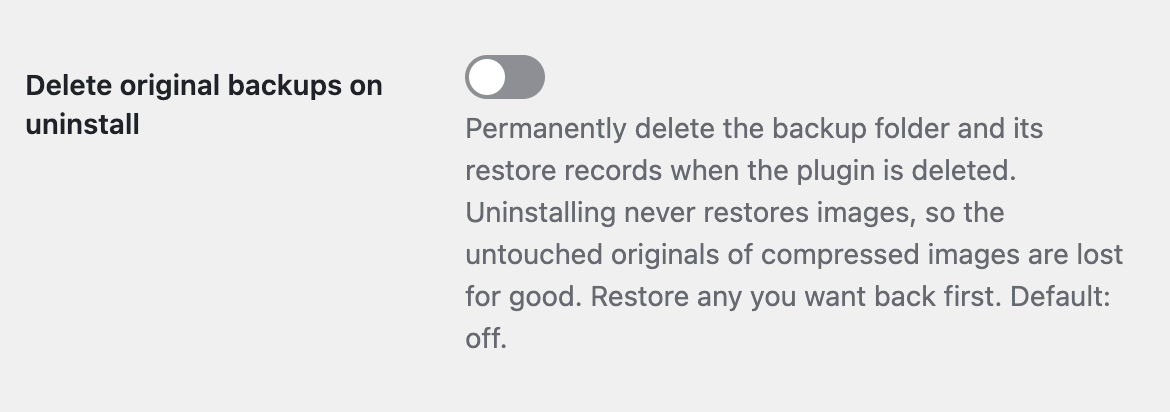
Delete optimized copies and wp wzio clean delete sidecars only. They preserve original backups. Neither deactivating nor uninstalling the plugin restores originals: compressed images stay compressed, so you can uninstall after a bulk run and keep the savings. To get the untouched originals back, restore them before uninstalling. By default uninstall keeps the backup folder and its restore records, so a reinstall can still restore them. Enable Delete original backups on uninstall to permanently remove the backups; the originals of compressed images are then lost for good.
Regeneration, other optimizers and caching
The plugin’s adapters for WordPress’s GD and Imagick image editors read the verified backup of a compressed main file while keeping the normal output destination. This avoids creating new thumbnails from already compressed pixels. When WordPress has an untouched unscaled original, it continues to use it. Third-party editors that bypass WordPress’s standard editor selection are outside this integration.
If another tool changes a source file after optimization, the plugin refuses further compression of that file rather than silently treating the change as its own output. Review or restore the backup before trying again. Avoid enabling original compression in TinyPNG, ShortPixel, Imagify, EWWW or Smush at the same time.
Original URLs remain unchanged. A CDN or browser may continue serving the previous bytes until its cache expires or is purged. The plugin does not automatically purge third-party caches.

 Image Optimizer Settings
 Bulk Optimize in WebberZone Image Optimizer
 WebberZone Image Optimizer WP-CLI