

Contextual Related Posts Pro v4.4.0 adds native “Related Posts (CRP)” elements for three popular page builders: WPBakery Page Builder, Elementor, and Bricks Builder. Each integration is experimental — the underlying rendering is stable (it reuses the [crp] shortcode), but the builder-side controls are new and feedback is welcome while they settle in.
WPBakery Page Builder
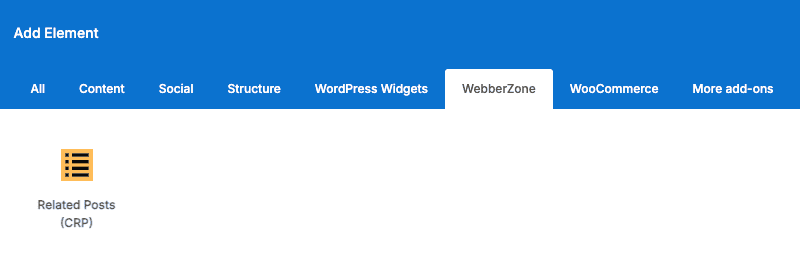
If WPBakery Page Builder (js_composer) is active, CRP Pro registers a Related Posts (CRP) element under its own WebberZone tab in the Add Element panel. It works in both Classic Mode and the Frontend Editor.
Adding the element
- Edit a post or page with WPBakery Page Builder.
- Click the Add Element (+) button to open the Add Element panel.
- Select the WebberZone tab.
- Click Related Posts (CRP) to insert the element.
Configuring the element
The element’s settings panel is organized into tabs: General, Query, Display, Advanced, and Design Options. The first four map to the shared controls below. Design Options is WPBakery’s standard tab for every element and holds the Extra class name and Custom CSS editor controls.

Elementor
If Elementor is active, CRP Pro registers a Related Posts (CRP) widget under its own WebberZone category in the widget panel. Settings apply live in the editor preview.
Adding the widget
- Edit a page with Elementor.
- Open the widget panel and search for “Related Posts”, or browse to the WebberZone category.
- Drag the Related Posts (CRP) widget onto the page.
Configuring the widget
The widget’s Content tab contains the General, Query, Display, and Advanced sections described in shared controls below. Elementor’s own Advanced tab at the top of the panel (margins, motion effects, custom CSS classes) is separate from CRP’s Advanced section inside Content — don’t confuse the two when looking for the Other attributes control.

Bricks Builder
If the Bricks theme is active, CRP Pro registers a Related Posts (CRP) element under its own WebberZone category, with live dynamic data support.
Adding the element
- Edit a page with the Bricks builder.
- Open the Elements panel and search for “Related Posts”, or browse to the WebberZone category.
- Drag the Related Posts (CRP) element onto the canvas.
Configuring the element
The element’s Content tab exposes the same General, Query, Display, and Advanced sections as the other two builders — see shared controls below. The Style tab holds Bricks’ own styling controls, separate from CRP’s own Style (preset) dropdown inside Display.
The Title field supports Bricks dynamic tags — click the lightning-bolt icon to insert one, e.g. More like {post_title}.

Shared controls
All three elements expose the same set of controls, grouped the same way:
General
- Title — heading text shown above the list.
- Show heading — toggle the heading on or off.
- Number of posts — maximum related posts to display.
- Offset — number of posts to skip from the top.
Query
- Post types — comma-separated list of post types to include.
- Order by — relevance, random, or date.
- Randomize order — shuffle the results.
- Include words — only match posts containing these words.
- Exclude post IDs — comma-separated post/page IDs to exclude.
- Exclude category slugs — comma-separated category/taxonomy term slugs to exclude.
- Restrict to taxonomy term IDs — limit display to specific
term_taxonomy_idvalues.
Display
- Style — one of the plugin’s built-in styles (same list as the Styles tab).
- Thumbnail placement — before title, after title, thumbnail only, or text only.
- Thumbnail size — an existing WordPress image size or a custom size name.
- Show excerpt and Excerpt length (words).
- Show author.
- Show date.
Advanced
- Other attributes — a free-text field accepting arbitrary
[crp]shortcode attributes asattribute="value"pairs, for options not exposed as a dedicated control. - WPBakery additionally exposes Extra class name and a Custom CSS editor, under its Design Options tab rather than Advanced.
How controls fall back to your saved settings
Every control left blank (or, for a checkbox/switcher, left unchecked as “off”) falls back to the plugin’s saved List tuning, Output, and Styles settings — the same way an omitted [crp] shortcode attribute does. Only an explicit value typed into a control overrides the saved setting for that element instance.
Styling in theme builder templates
If you place a Related Posts element inside a template used by a theme builder — a single/archive template, a header/footer, a Bricks popup, or a WPBakery template — CRP automatically enqueues the correct style CSS for that element at render time, even though the template itself isn’t the post being viewed.
Troubleshooting
- The element doesn’t appear in the panel. Confirm the relevant builder plugin/theme is active, and that Contextual Related Posts Pro (not the free version) is active.
- A setting doesn’t seem to apply. Check whether the control was left blank/unchecked — it will use your saved plugin settings instead. Set an explicit value on the element to override it.
- No related posts are shown. See Troubleshooting Related Posts do not display — the same query and settings apply regardless of how the element is inserted.
 Efficient Content Storage and Indexing (ECSI) in Contextual Related Posts Pro and Better Search Pro
 Feed vs web statistics