

WebberZone Image Optimizer v1.3.0: Block background images, AVIF from WebP uploads and more
Background images set on a Cover or Group block have always been the gap in my image delivery. The <picture> element works for <img> tags, but a background image lives in an inline style attribute, so unless you had added the server rules by hand, those images went out as the original JPEG or PNG.
WebberZone Image Optimizer v1.3.0 closes that gap. It also converts WebP uploads to AVIF, adds Site Health tests, lets AI assistants run Bulk Optimize and change settings on WordPress 6.9 and later, and makes Bulk Optimize much harder to stop.
WebP and AVIF for block background images
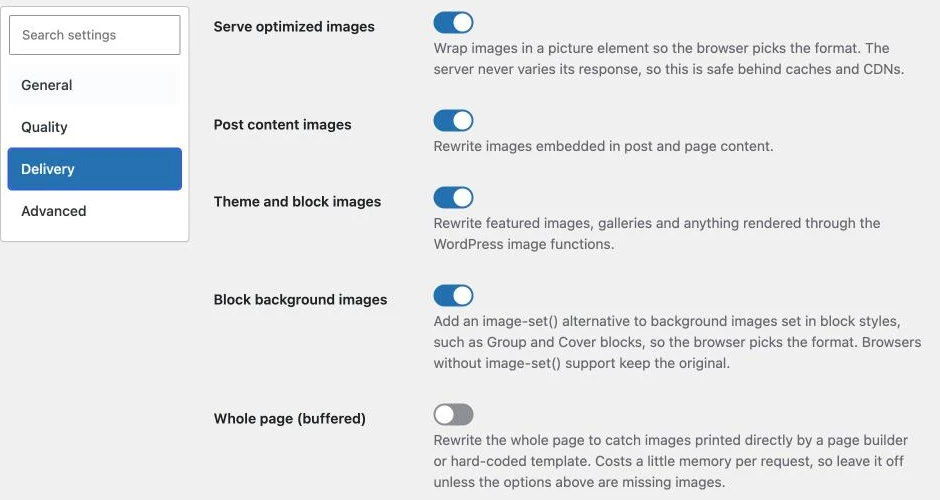
The new Block background images setting on the Delivery tab at Media → Image Optimizer is on by default. When a block’s inline style sets a background-image, the plugin keeps that declaration and adds a second one that uses CSS image-set(), listing the AVIF and WebP copies with the original as the last option.
The browser picks the first format it supports. A browser that does not understand image-set() with type() ignores the added declaration and keeps the original, so nothing breaks on older browsers.
Formats are only listed when the copy exists on disk. If an image has not been converted yet, the style is left alone.
This uses the same cache-safe approach as the rest of the plugin. The server sends the same markup to every visitor, and the browser chooses the format, so nothing varies per request. I wrote about why that matters in why WebP delivery can break behind a CDN.
Backgrounds set in a theme or plugin stylesheet file still can’t be rewritten in markup. For those, the server rules under CSS background images on the same tab remain the option.
AVIF copies for WebP uploads
WordPress has accepted WebP uploads since version 5.8, but earlier plugin versions skipped them entirely.
WebP is now a source format, and WebP uploads get an AVIF copy. They never get a second WebP copy, which the Media Library reports as Already this format. Animated WebP files are skipped, just like animated GIFs.
This only does something when AVIF is selected under Formats to generate on the General tab. The default is WebP only, so if you have not enabled AVIF, WebP uploads stay as they are.
If you already have WebP images in your library and AVIF is enabled, run Media → Bulk Optimize to create their AVIF copies.
Site Health tests
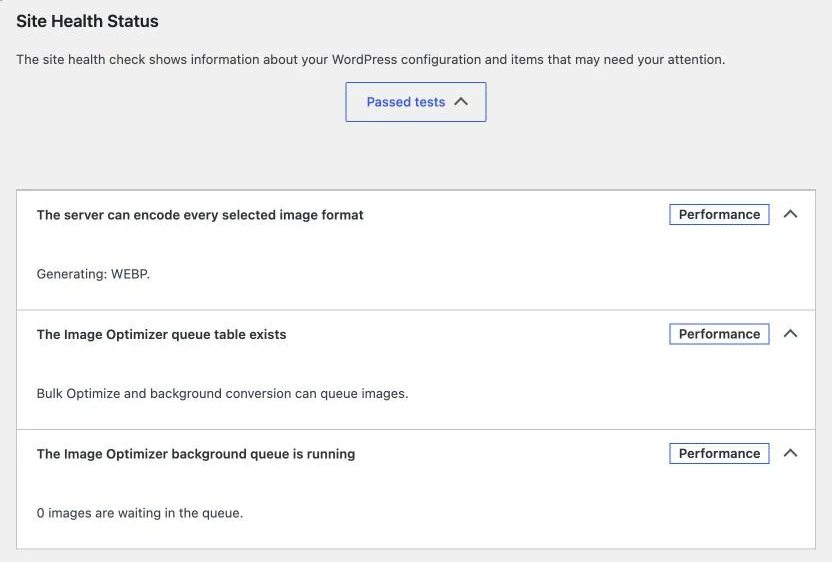
Three new tests appear under Tools → Site Health:
- Image Optimizer encoders checks whether the server can encode the formats you selected. It flags a server that can’t produce WebP or AVIF at all, and a selected format the server can’t encode.
- Image Optimizer queue table checks that the plugin’s queue table exists. Without it, Bulk Optimize and background conversion can’t run. The plugin tries to create the table on every admin page load, so a missing table usually means the database user lacks permission to create tables.
- Image Optimizer background queue flags a queue that has stopped moving, whether because
DISABLE_WP_CRONis set and nothing else runs the queue, or because WP-Cron or its loopback request isn’t working.
The Info tab also has a WebberZone Image Optimizer section with the version, the encoders found, the formats being generated, the main settings and the queue counts. If you ever open a support thread, copying that section saves a round of questions.
Run Bulk Optimize from an AI assistant
On WordPress 6.9 and later, the plugin registers six abilities with the Abilities API. AI assistants and other MCP clients connected to your site can use them to check progress, run Bulk Optimize, optimize a single image, and change settings, without you opening the admin.
| Ability | What it does |
|---|---|
wzio/get-status | Reports how much of the library is optimized, queue counts, bytes saved, the formats the server can encode, background queue health and recent failures. |
wzio/queue-bulk | Queues images for conversion, the same as starting Bulk Optimize. It can redo everything, only images made with older settings, or retry failures. |
wzio/run-batch | Converts the next batch now, for sites where WP-Cron doesn’t run. |
wzio/optimize-attachment | Creates WebP or AVIF copies of one image by attachment ID. |
wzio/get-settings | Reads the settings the assistant is allowed to change. |
wzio/update-settings | Changes one or more of those settings. |
Not every setting is exposed. Compressing originals, the optimized file naming setting and the uninstall clean-up options change or delete files, so they stay a deliberate choice on the settings screen.
Every ability except wzio/optimize-attachment requires the manage_options capability. Optimizing one image requires permission to upload files and to edit that attachment.
On WordPress 6.8 and earlier, nothing is registered, and nothing changes.

Bulk Optimize keeps going through server errors
Bulk Optimize stopped with an “is not valid JSON” error. This happened when PHP ran out of memory or time on an image, or when the server or a proxy returned an HTML error page instead of a result. The run stopped, and you had to restart it.
Bulk Optimize now retries a failed request up to five times before stopping and shows the retry count while it waits. The queue survives these errors, so each retry picks up where the run left off.
An image that crashed PHP stayed claimed for 10 minutes with no reason recorded. The PHP error is now caught and appears in the failures table on the Bulk Optimize screen, so you can see which image caused it and why. The Bulk Optimize documentation covers that table.
Other fixes in this release:
- The Media Library Optimize link reported PHP errors as an interrupted connection. It now says the server returned an error page and includes the HTTP status code.
- The Add to .htaccess and Remove from .htaccess buttons showed a JSON parse error when the server returned an error page.
- Compress PNG originals could be turned on with WP-CLI or a direct option update when no PNG tool was installed, although the settings screen blocked it. The plugin now keeps it off in stored settings and reads it as off until a PNG tool is available.
- Already optimized on the Bulk Optimize screen could exceed Images in the library. Conversion records left behind by attachments that no longer exist were counted, and their sizes were added to the savings totals. Both now count existing attachments only.
Upgrading
No action is needed. The Block background images setting is on by default and starts working as soon as you update. The Site Health tests register automatically, and so do the abilities on WordPress 6.9 and later.
If you use AVIF and have WebP images in your library, run Bulk Optimize once to give them AVIF copies.
If background images have been the last thing PageSpeed Insights flags on your Cover blocks, the first section is the part of this release for you.