

How to Automatically Close Comments on Old WordPress Posts: A Practical Guide
Spammers often target old posts. A comment, pingback, or trackback on something you published years ago can sit there unnoticed because nobody is watching that page anymore.
I introduced Auto-Close in September 2008. At the time, my post said WordPress had no built-in system for closing comments on old posts, so I wrote a plugin to do it.
The original plugin closed comments, pingbacks, and trackbacks on a schedule you set, or you could turn the schedule off and run it manually. This guide covers version 3.2.x. Auto-Close v3.2 lists what changed in that release.
Why the built-in WordPress setting is too blunt
WordPress now has Automatically close comments on posts older than a number of days under Settings → Discussion. One number covers comments and pings together.
It applies only to the post post type unless you hook the close_comments_for_post_types filter. And you can’t keep a particular post or category open.
Install and turn on the schedule
Install Auto-Close Comments, Pingbacks and Trackbacks from Plugins → Add New Plugin, then go to Settings → AutoClose.
Nothing closes until you enable it. On the General tab:
- Check Activate scheduled closing.
- Set Hour and Minute, both in UTC.
- Choose Run maintenance: Daily (default), Weekly, Fortnightly, or Monthly.
Leave the schedule off if you’d rather close discussion by hand from the Tools page.
Set closing ages per post type
On the Comments tab, check Close comments, choose Post types to include (default: post), and set Close comments on posts/pages older than. The default is 90 days, measured from the publish date.
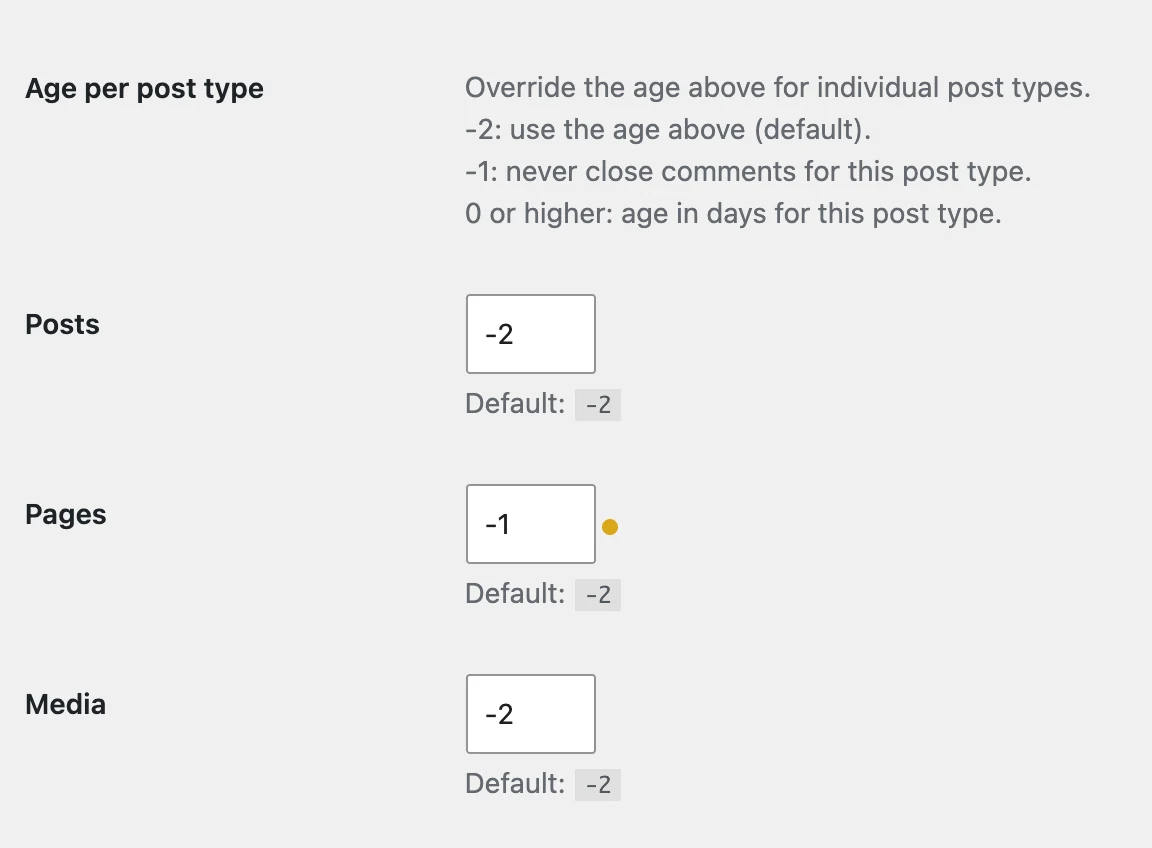
Age per post type lets you override that for each post type. The default, -2, uses the global age. -1 disables the age rule for that type, and 0 or higher sets a separate age in days.
The Pingbacks/Trackbacks tab has the same settings, with its own global age (also 90 days) and per-type overrides. You can close pings after a week and leave comments open for months.
Close after a number of approved comments
Close comments with at least this many approved comments closes a post’s comments once it reaches that count or passes its age, whichever comes first. It defaults to 0 (off). Pingbacks, trackbacks, spam, and unapproved comments don’t count.
The count is checked when maintenance runs, so a busy post can go past the limit before it closes. It still applies to post types whose age is set to -1.
Keep posts open or set a close date
Keep comments on these posts/pages open takes post IDs, such as 188,320,500. Every run reopens those posts, even if you closed one by hand.
Exclude posts in these categories/tags takes taxonomy terms from an autocomplete. Posts in those terms are skipped, not reopened. Excluding Posts and Terms covers both options in more detail.
To close a single post on a set date, use the AutoClose Settings box on the post edit screen. Close comments on and Close pingbacks/trackbacks on each take a date and time. An hourly autoclose_close_dates_event sweep applies them, so a post closes at the first sweep after its date, not at the exact minute. AutoClose Metabox and Close Dates has the details.
Reopen comments on update
Check Reopen comments on post update to reopen comments when you save a published post. Keep comments open for (days) protects it from closing for 30 days by default. Set it to 0 and comments stay open until the next run closes them.
This covers comments, not pings, and only post types selected on the Comments tab.
Preview, then confirm the schedule
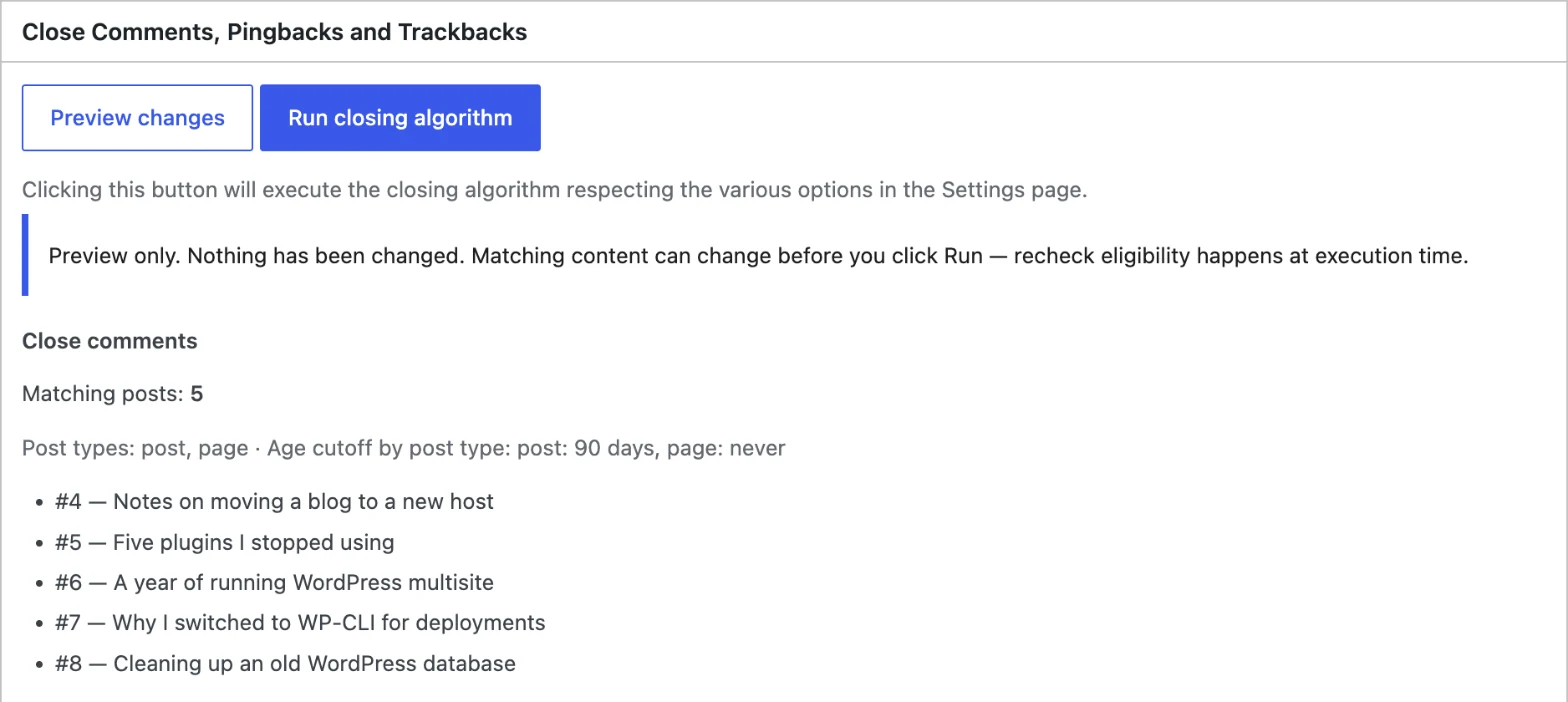
Go to Tools → AutoClose Tools. Preview changes shows how many posts each operation would affect, with a sample of up to 10, without changing anything. Clicking Run closing algorithm applies the same rules as the schedule.
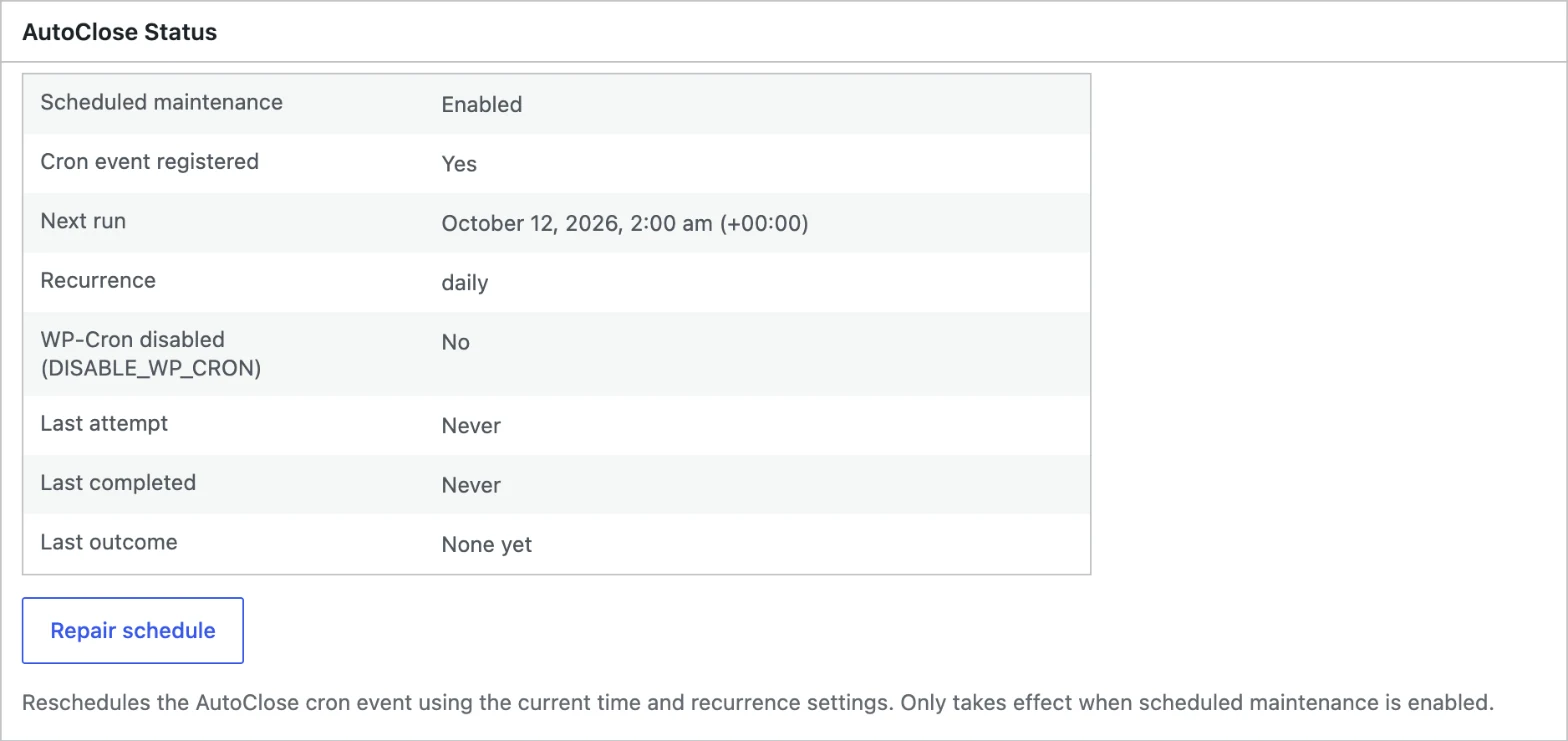
The AutoClose Status panel shows whether scheduled maintenance is enabled, whether the cron event exists, the next run, and the last run’s outcome. If it’s missing, click Repair schedule.
Close old comments with WP-CLI
wp autoclose run uses your saved settings.
wp autoclose comments close and wp autoclose pings close ignore your saved settings. With no post IDs or --age, they close discussion on every published post. Run them with --dry-run first.Set your ages and run Preview changes before you switch the schedule on. Install free on WordPress.org
