

Code Block Highlighting v1.3.0: Code blocks that survive deactivation, per-block color schemes and more
A syntax highlighting plugin should be easy to leave. If you switch it off, your code should go back to being an ordinary WordPress Code block, not a wall of block errors. Until this release, WebberZone Code Block Highlighting didn’t quite manage that, and fixing it is the main reason for 1.3.0.
I’ve also added two features: a color scheme you can set for a single block, and language detection for code blocks that never had a language set.
Code blocks now stay valid when the plugin is deactivated
Deactivating the plugin turned highlighted code blocks into “This block contains unexpected or invalid content” errors.
The plugin extends the core Code block rather than replacing it, which was meant to keep existing posts valid. The catch was in how blocks were saved. Up to 1.2.3, the plugin stored the language, file name, highlighted lines, start line and max height in the block’s HTML. With the plugin active, the editor knew how to read that markup. With the plugin switched off, the core Code block compared the saved HTML with what it would have saved itself, found extra attributes and classes, and flagged the block as invalid.
From 1.3.0, code blocks are saved with exactly the markup the core Code block produces. Every option you set lives in the block’s settings instead, and the plugin adds the classes and attributes it needs when the page is rendered. Your code blocks look the same on the front end, in both client-side and server-side modes. The difference is that deactivating the plugin now leaves behind standard, valid Code blocks.
Converting blocks saved by earlier versions
Blocks saved by 1.2.3 or earlier still carry the old markup. They keep working while the plugin is active, so you don’t have to do anything. They only cause trouble if you deactivate the plugin before converting them.
There are three ways to convert them:
- Update the post. Open it in the editor with the plugin active and click Update. The editor converts the blocks as it loads the post, but nothing is saved until you update it.
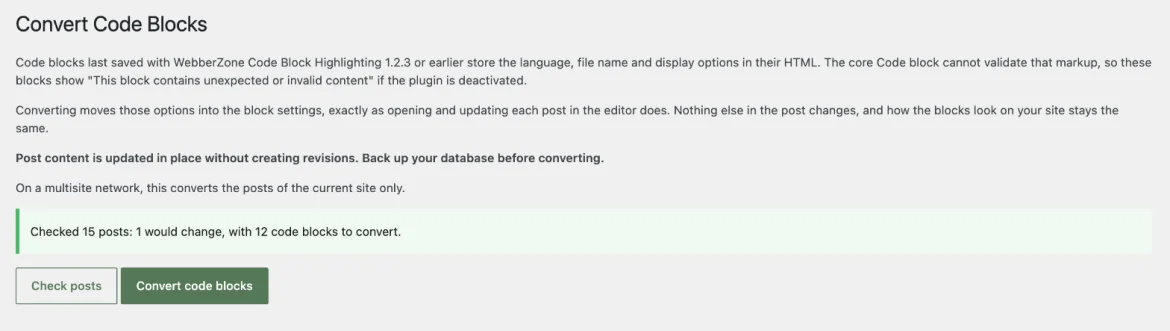
- Use the Convert Code Blocks screen. Open Settings → Code Block Highlighting and click Convert Code Blocks in the banner at the top. Click Check posts to see how many posts and code blocks would change, then click Convert code blocks to convert them. Large sites are processed 200 posts at a time, with a button to continue with the next batch.
- Use WP-CLI. Run
wp wzcbh migrate-code-blocks. Add--dry-runto see what would change,--post_typeor--idsto limit the scan, and--verboseto list every post that changes.
On multisite, the converter works on one site at a time. Run the command once per site with --url, or use the Convert Code Blocks screen on each site.
The converter produces exactly what re-saving the post in the editor would, and it only touches code blocks. Other blocks in the post are left as they are. Running it again changes nothing.
I was strict about what it converts. A block is only converted when its HTML matches what an earlier version of the plugin would have saved for its settings. Anything else is left alone and reported, both on the Convert Code Blocks screen and by WP-CLI, so you can open those posts and review them in the editor. Blocks saved by the older Code Syntax Block plugin are converted too.
The getting started guide explains how code blocks are saved now.
A color scheme for a single code block
The Color Scheme setting applies one theme to every code block on the site. That works until you want one block to stand out, or a light snippet in an otherwise dark post.
Each code block now has a Color scheme dropdown in its Syntax Highlighting panel. The default, Use global setting, follows the settings page as before. Pick any of the 21 themes, and that block, its file name tab, and its toolbar use it instead in both client-side and server-side modes. The editor preview shows the chosen theme’s background and text color.
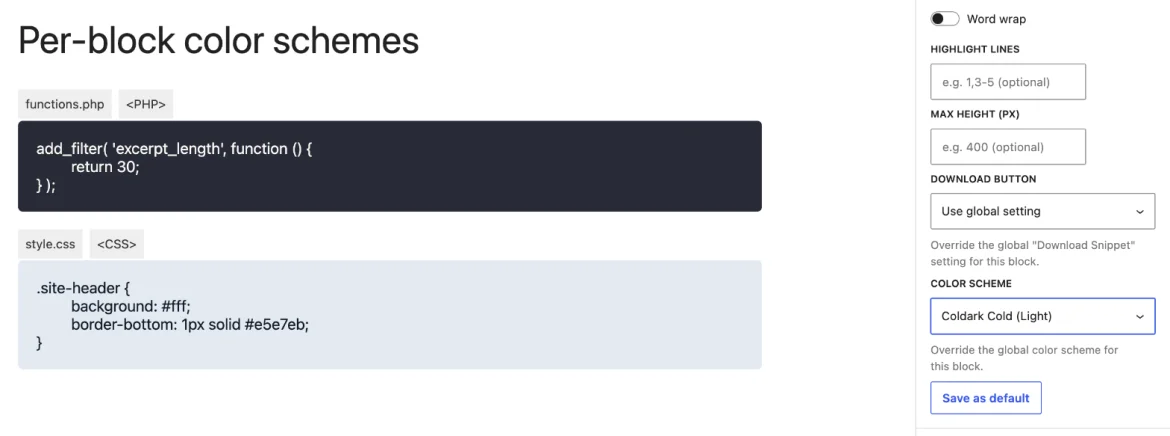
The extra stylesheet only loads on pages that use it. A post with no per-block override loads exactly as before.
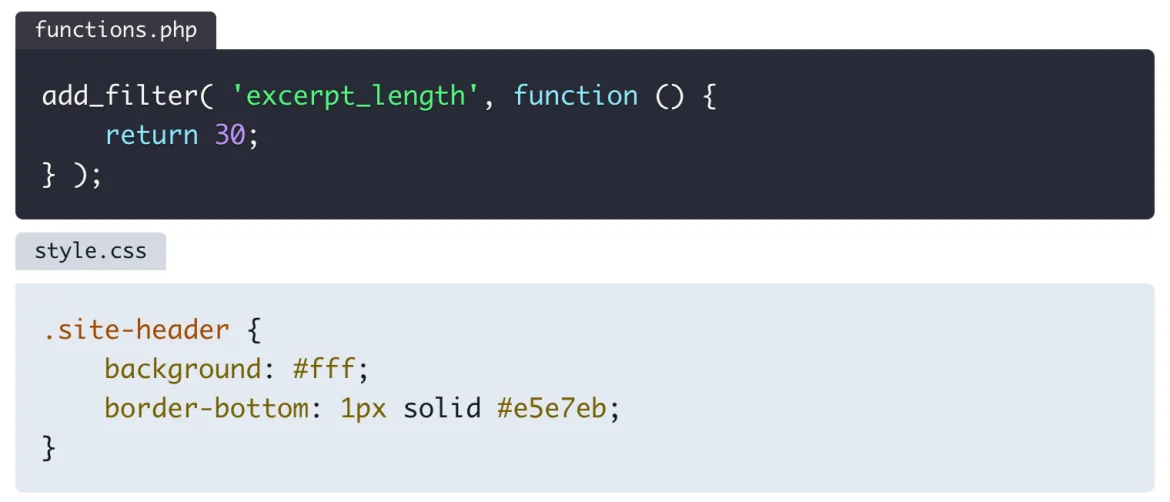
Save as default now also stores the block’s color scheme and download button setting, so new blocks you insert pick them up. Saving a color scheme as the default only affects new blocks. It doesn’t change the global Color Scheme setting. The per-block controls guide lists every option.
Language detection in server-side mode
Plenty of sites have code blocks that were never given a language. They show up as plain, unhighlighted text, and fixing them means opening every post.
With the new Detect Language setting turned on, server-side mode detects the language of those blocks and highlights them. The language label and the download file name follow the detected language, so a PHP snippet is labeled PHP and downloads as snippet.php. Nothing is saved to the post, and turning the setting off restores everything to how it was.
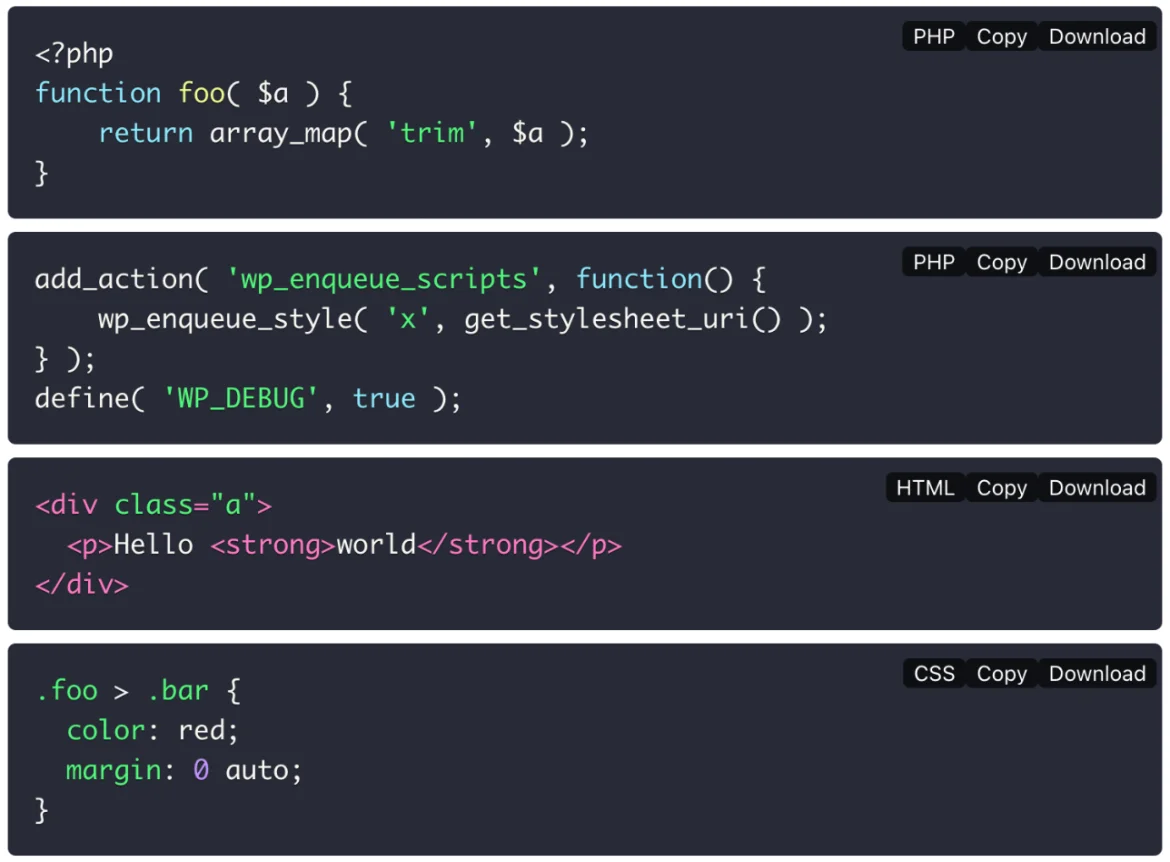
It’s off by default and only works in server-side mode, where highlight.php already does the highlighting.
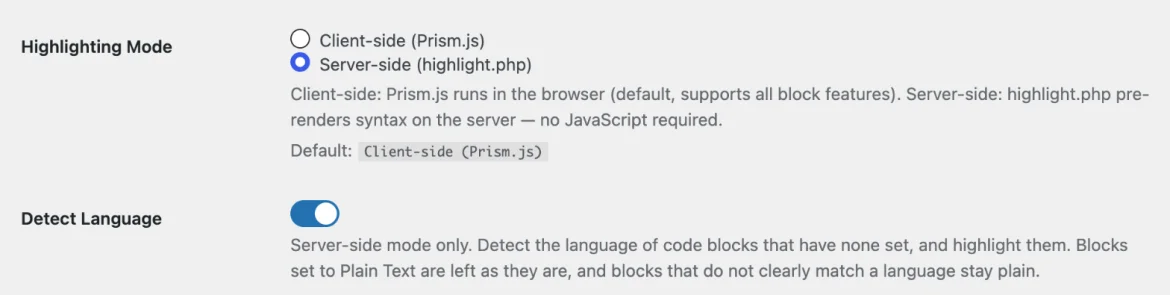
Detection is only useful if it doesn’t get things wrong. Untagged blocks are often not code at all: command output, a list of field values, a line of instructions. Before settling on the defaults, I ran the detector over the untagged code blocks on my test sites and a set of typical snippets. Left to itself, it labeled a paragraph of prose as Vim script, a wp plugin install command as SQL and a few lines of Name: value text as YAML. So the defaults are deliberately cautious:
- A block is only highlighted when one language clearly matches. Otherwise it stays plain, exactly as before.
- Groovy, Vim, TypeScript and Dart are left out of detection, because they matched plain text or outscored ordinary JavaScript. You can still pick them for a block yourself.
- Blocks set to Plain Text are never detected.
- Blocks larger than 16KB are skipped.
Detecting a language means trying the code against each candidate language, which costs time. Each block is detected once and the result, including “no match”, is cached, so later page views skip the work. On my test page with nine untagged blocks, the first view took about a tenth of a second longer and later views were no slower than with detection off. Your numbers will vary with the size and number of blocks.
Developers can change the candidate languages with wzcbh_auto_detect_languages, how clear the match must be with wzcbh_auto_detect_min_relevance, and the size limit with wzcbh_auto_detect_max_bytes. The client-side vs server-side highlighting guide has the details.
Other fixes
Code in synced patterns, widgets, and templates is now highlighted. The plugin loads its styles and scripts only on pages with a code block, but it only looked for code blocks in the post content. A code block inside a synced pattern, a widget or a block theme template was left unstyled when the post itself had none. The plugin now follows synced patterns and also loads its assets when any code block is rendered.
Opening a post no longer changes its existing code blocks. Saved defaults were meant for new blocks, but the editor also applied them to existing blocks without a setting and marked the post as changed. Defaults now apply only to blocks you insert.
The start line is respected next to other inline styles. In server-side mode, the plugin ignored a custom start line when the block also had a max height or a spacing style.
Upgrading
No action is needed after updating. Your code blocks keep working and look the same.
If you might ever deactivate the plugin, convert your older blocks from Convert Code Blocks on the settings page or with wp wzcbh migrate-code-blocks, after backing up your database. If you’d like to try language detection, switch to server-side mode and turn on Detect Language under Settings → Code Block Highlighting.