

How to Build a Knowledge Base in WordPress Without a Page Builder: A Practical Guide
Back in 2015, I moved my WordPress plugins under this domain. I also needed proper documentation, and every tool I tried worked the way its author wanted, not the way I did.
Documentation software treated multiple products as a premium feature, which is a fair business model. But, as a completely free plugin offering, I didn’t want to pay for this feature. So, I wrote WebberZone Knowledge Base and made unlimited products part of the free version. It still is.
What follows is a working setup: install, structure, sections, breadcrumbs, search. No page builder involved at any point.

What you need first
WordPress 6.7 or later and PHP 7.4 or later. That is the entire list.
You should be comfortable with custom post types and taxonomies, because that is what the plugin hands you. As of this writing, the version is 3.1.5, with v3.2.0 on the horizon.
Installing the plugin
Search for WebberZone Knowledge Base under Plugins → Add New, or skip the click path:
Add --activate-network instead if you are running a multisite network.
First activation drops you into the Setup Wizard: structure, permalinks, display options, then sample content. Do not skip it. Those opening steps decide your structure mode and your base slugs, and changing a slug later means old URLs stop resolving.
Take the sample content on the last step. Single product mode seeds two sections and four articles; multi-product mode seeds two products, four sections, and eight articles. They are real published articles with headings, lists, and code blocks, so you can see how your theme renders a knowledge base before writing a word of your own.
Re-importing skips what already exists, and Knowledge Base → Tools carries a delete button that only touches what the wizard created. The wizard itself re-runs at admin.php?page=wzkb_wizard, and the setup wizard documentation covers each step.
How the content is actually structured
Four moving parts, and they are all native WordPress objects:
- Articles live in the
wz_knowledgebasepost type. - Products use the
wzkb_producttaxonomy. - Sections use the
wzkb_categorytaxonomy. - Tags use the optional
wzkb_tagtaxonomy.
Both wzkb_product and wzkb_category are hierarchical, which is where the design pays off. Your navigation is a term tree, not a set of pages you maintain by hand. Add a section, and every listing that queries the tree picks it up.
Reorganizing is cheap too. Move an article between sections and its URL does not change, because the default article permalink is the knowledge base slug followed by the post name. The section is metadata, not part of the address.
That is the whole argument against building docs with a page builder. A page builder makes you the database.
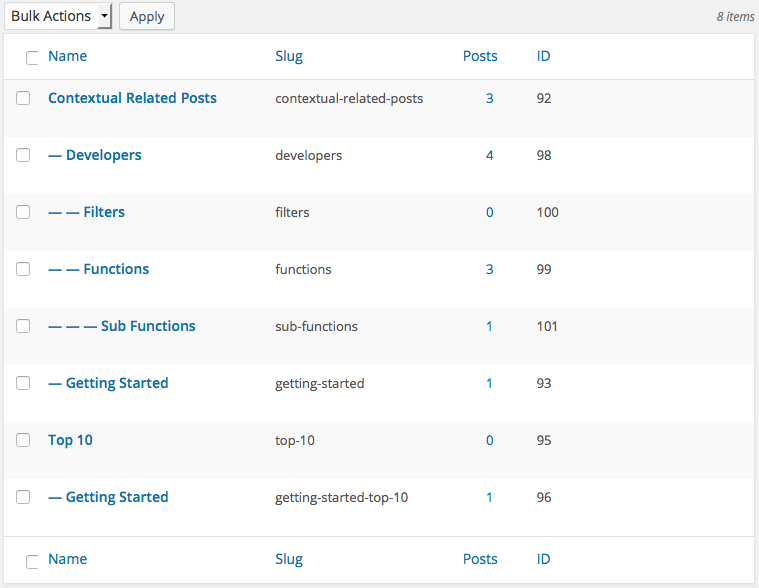
Setting up products and sections
Open Knowledge Base → Settings. On the General tab, turn on Enable Multi-Product Mode if you are documenting more than one thing. You get a Products menu, and each article or section can belong to one or more products.
First section level on the Output tab decides which level of the hierarchy the grid starts rendering from, and its two values pair with the two ways of working:
- Set it to
1for Multi-Product Mode, where the Products taxonomy handles the split and sections begin at the top level inside each product. - Set it to
2for the traditional layout, where top-level sections stand in for products, and their sub-sections hold the articles. This is the default and the behavior from before version 3.0.
Three more options on the Output tab that matter once real content lands:
- Max articles per section defaults to 5. Use
-1for no limit. Once the limit is reached, the section footer gains a more link to the full listing. - Show empty sections is off by default, so a section stays hidden while it holds nothing.
- Show article count and Show excerpt control how much each listing row tells the reader.
Drop the knowledge base onto any page with [knowledgebase] or the Knowledge Base block. Pass a section ID to scope it, as in [knowledgebase category="92"]. The full list is in the Knowledge Base shortcodes documentation.
Adding breadcrumbs
Breadcrumbs are not optional in documentation. A reader arriving from Google needs to know where they landed before they will trust the answer.
The bundled templates render them already. If you are working in your own templates or want them somewhere else, you have four ways in:
- The
[kbbreadcrumb]shortcode, which takes aseparatorattribute if the default divider does not suit your theme. - The Knowledge Base Breadcrumb block, or the classic widget of the same name.
wzkb_breadcrumb()in a PHP template, orwzkb_get_breadcrumb()if you want the string returned instead of printed.
The output carries Schema.org BreadcrumbList markup, so search engines get the hierarchy instead of inferring it from your URL structure.
Wiring up search
Default WordPress search will happily return your docs mixed in with blog posts, release notes, and pages, ranked by nothing useful. That is not a documentation search.
Use [kbsearch] or the Knowledge Base Search block instead. Both scope the query to knowledge base articles, so a reader searching for “webhook secret” gets articles and nothing else.
Enable live search under Knowledge Base → Settings → Output → Search is on by default and adds AJAX suggestions below the input. The implementation is debounced rather than firing on every keystroke, arrow keys move through the results, and matches are announced in an ARIA live region for screen readers. The live search documentation covers the rest.
If you want the docs search also to be your site search, that is a different job, and I would reach for Better Search rather than bending this plugin into shape.
When something looks wrong
Articles return 404. Go to Settings → Permalinks and click Save Changes. Flush rewrite rules after the post type or any slug changes. It is the first question in the plugin FAQ for a reason.
Sections look empty or truncated. Check Max articles per section and Show empty sections before assuming a query problem.
Listings feel slow on a large knowledge base. Turn on Enable cache on the General tab. Section and product queries are the expensive part, and caching them makes a difference on sites with a few hundred articles. On a knowledge base of twenty articles, you will not notice anything.
To change the markup instead of the settings, copy single-wz_knowledgebase.php, archive-wz_knowledgebase.php, taxonomy-wzkb_category.php or wzkb-search.php into your theme or into wp-content/knowledgebase/templates/. Block themes take the .html equivalents.
Where to go from here
The free plugin is on WordPress.orgOpens in a new window with no limits on articles, sections, or products. Shortcodes, blocks, widgets, breadcrumbs, live search, related articles, the inline table of contents, the REST API, and support for WPML, Polylang, and TranslatePress are all included.
Knowledge Base Pro is for larger documentation sites. You get article ratings with follow-up questions, a floating help widget, and a Documentation layout that renders the knowledge base as three columns: navigation sidebar, article, and an On this page outline. Seven extra styles sit on top of Classic and Vibrant, a permalinks engine takes over URL structures, and GitHub sync pulls Markdown docs in over a webhook.
Pro is a separate plugin that replaces the free one instead of sitting alongside it. Your articles, sections, and settings carry over untouched.
