

WebberZone Image Optimizer v1.2: Original compression, resizing and selective regeneration
WebP and AVIF copies reduce the images delivered through a page, but a direct JPEG or PNG link can still serve the larger source file. Social previews and other requests that bypass the page’s <picture> element can use that source too.
With WebberZone Image Optimizer 1.2.0, I’ve added optional compression of those served originals, with mandatory backups and a restore path. This release also adds controls for image dimensions, disk usage reporting and a way to regenerate copies after changing encoding settings without reprocessing every image.
Compress originals with a way back
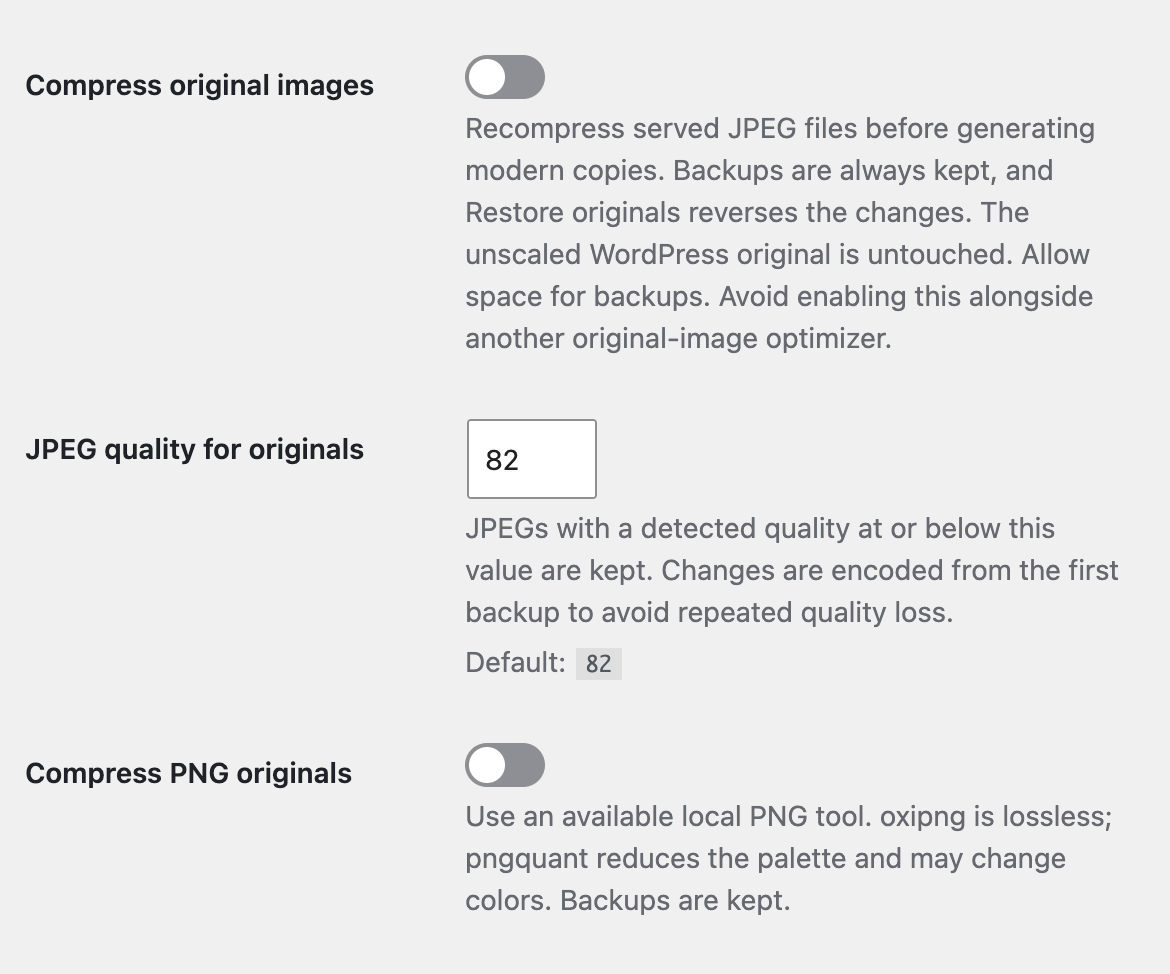
The new Compress original images setting is on the General tab at Media → Image Optimizer. It’s off by default. Updating the plugin keeps your existing JPEG and PNG files unchanged unless you enable original compression or run the new compression command.
JPEG quality for originals defaults to 82. If Imagick detects that a JPEG is already at or below the chosen quality, the plugin keeps it unless resizing is needed. Compression follows the selected image sizes and exclusions, and the replacement must meet Minimum saving (%) before it replaces the served file.
Every file is backed up before its first change. If you change compression settings later, encoding starts from that backup rather than from the compressed result. The WordPress GD and Imagick editor integration also uses a verified main-file backup when available, avoiding regenerating thumbnails from already compressed pixels.
The served main file, including a WordPress scaled image, is eligible. WordPress leaves the separate unscaled upload untouched.
PNG compression depends on your server
Compress PNG originals is off by default and appears only when the server passes the PNG compression probe. It requires a local oxipng or pngquant executable and PHP process execution. The plugin doesn’t download either tool. Once your host has installed a supported executable and enabled PHP process execution, enable both original-compression switches. PNG compression then runs when an eligible attachment is processed. See the PNG server setup and troubleshooting guide for the host requirements and how to refresh the probe.
oxipng is lossless. pngquant reduces the palette and may change colors. PNGs with an embedded ICC color profile are left unchanged when only pngquant is available, and animated PNG originals are not compressed.
JPEG and PNG compression run on your server. No external compression service or account needs to be configured.
Restore files and dimensions
Restore originals is available in Media Library row actions, bulk actions and the Edit Media screen. Restoration verifies the backup, restores the files and dimensions, and queues fresh WebP and AVIF copies.
Restored attachments are excluded from automatic original compression so the next background run doesn’t undo the restore. An explicit per-image Optimize action or wp wzio compress allows original compression again.
Backups occupy additional disk space. They’re kept on uninstall by default, together with the records needed to restore them after reinstalling. Delete original backups on uninstall is off by default; enabling it permanently removes that recovery path when you uninstall.
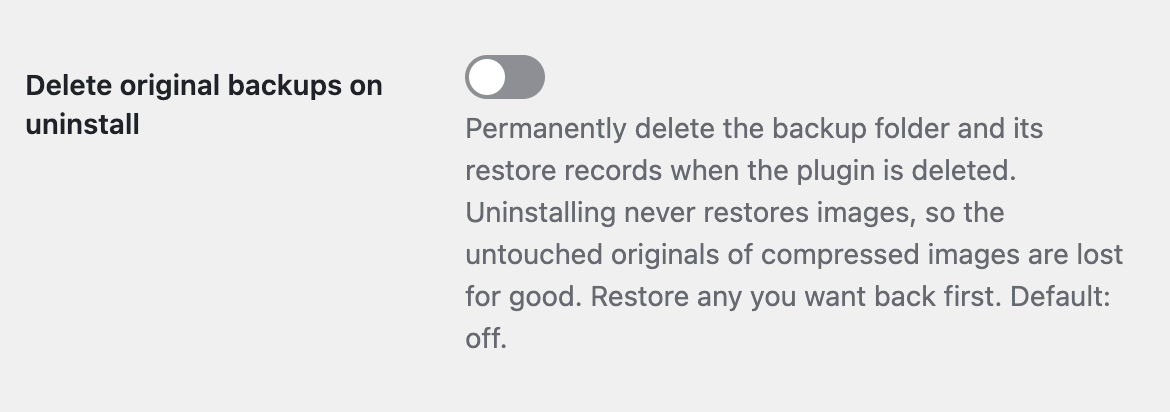
Deactivating or uninstalling does not restore compressed originals. Restore them first if you want the previous files back. Keep both the backup directory and the WordPress database in your site backups.
uploads/wzio-originals/. The plugin writes access rules for Apache/LiteSpeed and IIS. nginx and custom server configurations need an equivalent rule to deny direct access to this directory.Control dimensions for new and existing images
Maximum image dimension sets the maximum width or height for new uploads supported by WordPress’s large-image scaling. It defaults to 0, which preserves the WordPress scaling threshold. WordPress retains the unscaled upload when it scales an image.
Disable upload scaling is also off by default. Enabling it turns off that scaling for new uploads and takes precedence over the maximum dimension.
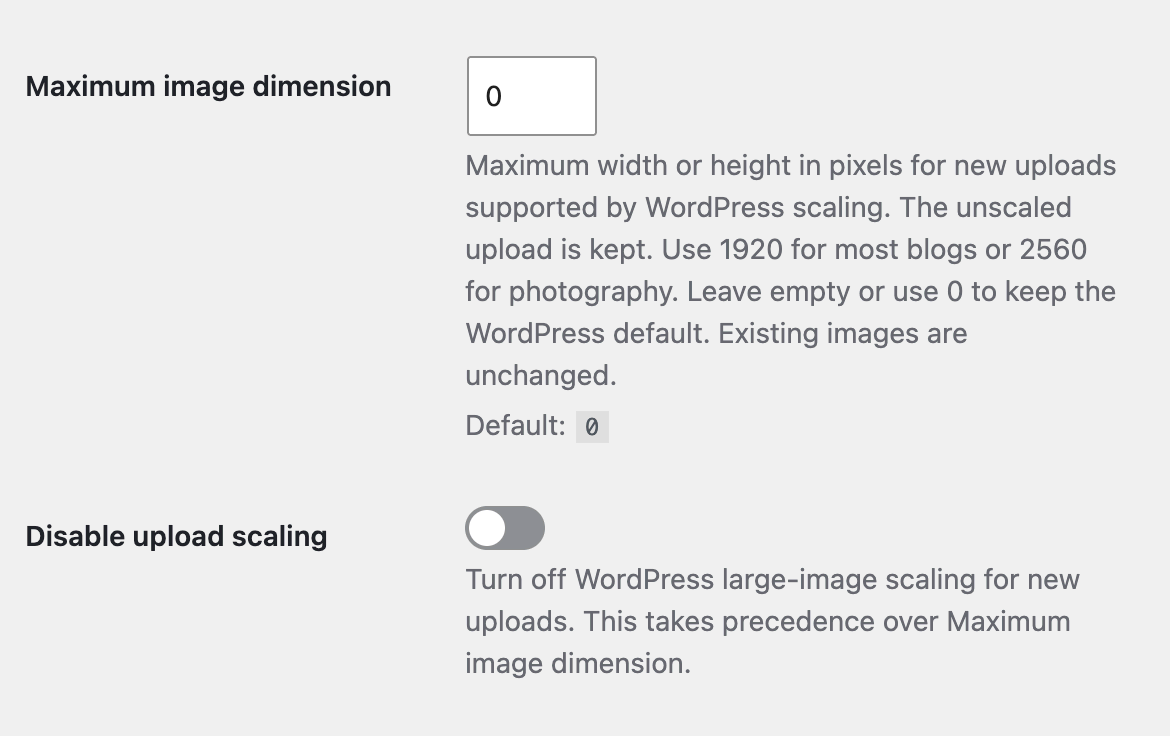
Changing the upload limit doesn’t resize existing images. For those, set a positive maximum dimension, keep scaling enabled and enable Resize existing originals alongside Compress original images. Resizing existing originals is off by default and applies during optimization to the served main file. PNGs also require PNG compression to be enabled and available.
Existing thumbnail files remain on disk, so directly embedded thumbnail URLs continue to work. While a main file is resized, thumbnails wider than it are omitted from responsive srcset candidates generated through WordPress.
Stored post content and its width and height attributes aren’t rewritten. If a layout uses fixed full-size dimensions, check it after resizing: it may display the image larger than its new resolution.
Regenerate copies affected by changed settings
Changing WebP quality or AVIF effort previously meant choosing between keeping existing copies and re-encoding the library. The new Regenerate only images made with older settings option at Media → Bulk Optimize selects attachments with copies whose recorded encoding settings differ from the current settings. Within those attachments, it re-encodes the affected copies.
This covers recorded quality, effort, metadata stripping and PNG lossless/fallback settings. It isn’t a general detector for every plugin setting, and it doesn’t recompress originals.
Copies created before settings tracking, including those from versions before 1.2.0, are left alone. Use Re-optimize images that are already done if you want to regenerate those too. The selective option is unchecked by default.

See savings and storage separately
Bulk Optimize now reports Original bytes saved, Backups occupy, Main images resized and Optimized copies occupy, with optimized-copy storage broken down by format. The Media Library summary and Details table show original compression results and resized dimensions, and wp wzio status includes the new totals.
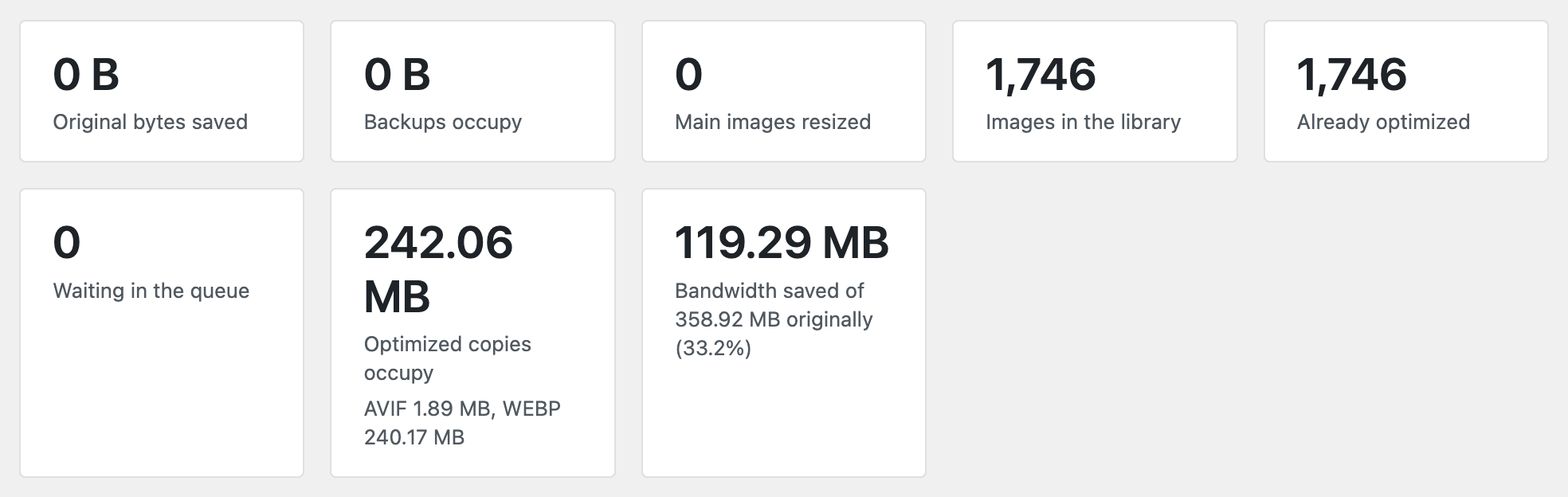
Original savings compare the backup with the current source. Savings from WebP and AVIF compare that source with its smallest modern copy. Backup storage is a separate disk cost, so compressing an original doesn’t mean total disk usage falls by the same amount.
Bandwidth savings totals previously missed conversions performed outside the queue. The totals now come from attachment conversion records, covering uploads, Media Library actions and WP-CLI conversions as well as queue processing. Clearing queue records no longer loses those recorded savings. These figures describe file-size savings, not measured visitor traffic.
Other fixes in this release:
- Conversion now loads the WordPress file helpers needed to write temporary files in the background and command-line requests.
- Copies written during conversion are discarded if the attachment was deleted before conversion finished.
Command-line support
The new commands let you preview original compression, process selected attachments and restore their backups:
wp wzio compress explicitly enables original compression for that command. PNG processing still requires its setting and a working tool. Add --resize to apply a positive Maximum image dimension while scaling is enabled.
Selective regeneration is available through wp wzio convert --outdated and wp wzio queue --outdated.
After updating
If you only want WebP and AVIF copies, you can continue using the plugin as before. Original compression and resizing remain off by default.
To try original compression, allow space for backups, check the backup directory’s access protection and enable it in General settings. Avoid enabling original compression in another optimizer at the same time. Optimize a few selected images, inspect their Details and check the result before processing the library.
Saving settings doesn’t start a library-wide job. To include images already processed, select Re-optimize images that are already done on Bulk Optimize, or use wp wzio compress. Original URLs stay the same, so purge any CDN or image cache that needs to pick up the changed files; the plugin doesn’t purge third-party caches automatically.