

Top 10 v4.1.0 Released — Import from WordPress Popular Posts, Smarter Charts, and Performance Improvements
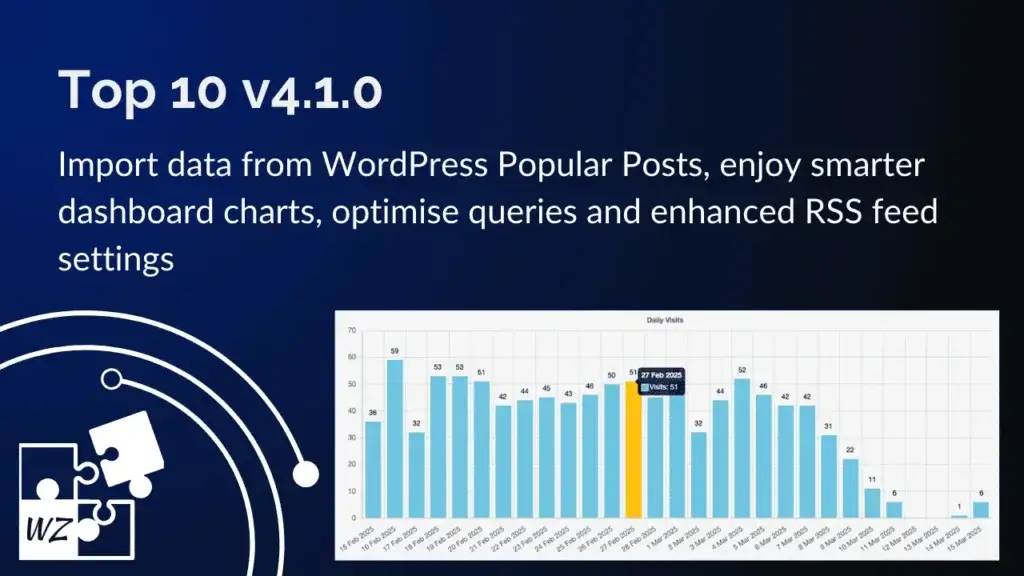
I’m excited to announce the release of Top 10 v4.1.0, which is packed with several new features, performance optimisations, and bug fixes. This update is particularly significant as it introduces an importer for WordPress Popular Posts, smarter chart visualisation, a new setting to control MySQL query execution time (Pro), and a new feed setting to limit Popular Posts feeds to a category.
Let’s dive into what’s new in Top 10 v4.1.0.
🔄 Import Data from WordPress Popular Posts

This feature seamlessly transfers your historical popular post data from the WordPress Popular Posts (WPP) plugin to Top 10. This means you can retain the valuable view counts from your site’s history while making this exciting change, ensuring a smooth transition without losing data.
How does it work?
- Navigate to Top 10 → Import/Export.
- You’ll now see a new section: Migrate WordPress Popular Posts Data to Top 10.
- If you’re on the Multisite Network page, you can select which sites to import data from.
- You can either replace existing counts or merge counts for existing posts.
- A dry-run mode lets users preview how many posts will be imported before making changes.
👉 Pro Tip: Backup your database before running the migrator!
✅ No more worrying about starting fresh when moving from WordPress Popular Posts!
📊 Smarter Chart Visualisation in the Dashboard
The Popular Posts chart in the Top 10 Admin Dashboard adapts to help you visualise your post views better over time.
What’s changed?
If your dataset has over 100 data points, the display automatically switches from a bar chart to an area chart. This feature makes it easier to see long-term trends without overwhelming the chart with too many bars. Check out the video below on how this looks like.
Why does this matter?
The bar chart will often become unreadable if you’re trying to look at daily views over a long period. The new auto-switch to area charts ensures you get clear and meaningful insights.
⚡ [PRO] Query Optimisation with MAX_EXECUTION_TIME
Some Top 10 queries (especially daily/hourly view counts) could become resource-intensive for sites with heavy traffic. In v4.1.0, I’ve introduced a new setting for Pro users to set a maximum execution time for MySQL queries.
Why does this matter?
If a query takes too long (e.g., fetching the most popular posts of the day from a massive database), it could slow down your site.
With MAX_EXECUTION_TIME, you can set a hard limit (in milliseconds) to stop long-running queries from consuming too many server resources.
How to enable it?
- Head over to Top 10 → Settings → General.
- Set the Maximum Execution Time value (default is 3000, meaning 3 seconds).
- Alternatively, you can use the
top_ten_query_max_execution_timefilter to set this value programmatically.
📅 [PRO] Click to View Top Posts by Day
Another one for Pro users! In the Popular Posts chart on the Dashboard, you can now click on a column (representing a particular day) to instantly view the top posts for that day.
Why is this useful?
- If you experience a traffic spike on a particular day, you can click on that spike to instantly view which posts were the most popular.
- This feature is perfect for analysing viral content and understanding day-by-day trends.
- It offers a quick way to view posts for any specific day without going to the Popular Posts screens.
🔧 Improved Database Table Handling
In v4.1.0, I’ve also improved how Top 10 handles its database tables.
What’s changed?
You’ll now see a clear admin notice if any Top 10 table (like daily/hourly views) is missing. Additionally, Top 10 will automatically recreate missing tables if any tables are found to be missing during plugin activation. This should prevent scenarios where the plugin stops tracking views due to missing database tables.
📡 [PRO] Enhanced Popular Posts RSS Feeds
What’s unique?
Top 10 Pro now supports category and post type filtering for Popular Posts RSS feeds. You can customise feeds using URL parameters or configure the category defaults via the dedicated setting.
Why this matters
With this update, you can create more targeted RSS feeds based on your audience’s interests. Want a feed of only popular blog posts? Or maybe just trending product pages? Now, you can easily fine-tune what appears in your RSS feeds.
How it works
- Filter via URL parameters – Append category or post type filters directly to the RSS feed URL. e.g. ?category=news or ?post_type=product.
- Set the default category filter in settings – Configure RSS behaviour without manually modifying URLs.
Use cases
- Newsletters – Show only the most popular posts from specific categories.
- Syndication – Feed content into apps or third-party platforms with precision.
- SEO & Content Strategy – Generate focused RSS feeds for better indexing and distribution.
This feature ensures more control over your RSS content, making sharing relevant and engaging posts easier. 🚀
🐛 Bug Fixes
I’ve also addressed a few bugs in this release:
- ✅ Fixed: Tables were not created during plugin activation. This has now been resolved.
- ✅ Fixed: The popular posts feed always displayed the full content instead of the excerpt, regardless of the Reading settings. The feed will now correctly follow your Excerpt/Full Content setting.
- ✅ Fixed: The daily popular posts feed link gave a 404 error.
⏩ Ready to Upgrade?
Top 10 v4.1.0 is available now! You can update it directly from your WordPress dashboard under Plugins or download it from the WordPress plugin repositoryOpens in a new window.
👉 If you’re a Pro user, I highly recommend configuring the Maximum Execution Time to optimise performance for high-traffic sites.
👉 If you’re switching from WordPress Popular Posts, now’s the perfect time to migrate all your data.
As always, I’d love your feedback. Please let me know if you encounter any issues or have feature requests.
Happy counting! 🚀