

Knowledge Base v3.2: Ask the Docs, Abilities API tools and more
Today, visitors ask a question, get a list of articles that each match part of it, and open three of them to find the one sentence they needed. In Knowledge Base v3.2, I’ve added Ask the docs to Knowledge Base Pro: an optional beta feature that answers the question from your published articles and links to the articles it used.
This release also registers Knowledge Base with the WordPress Abilities API, so AI agents and other integrations can search your articles and read your section tree. A few search fixes round it out, including two for sites that also run Better Search. Free and Pro now require WordPress 6.9 or later.
Ask the Docs: answers from your own articles
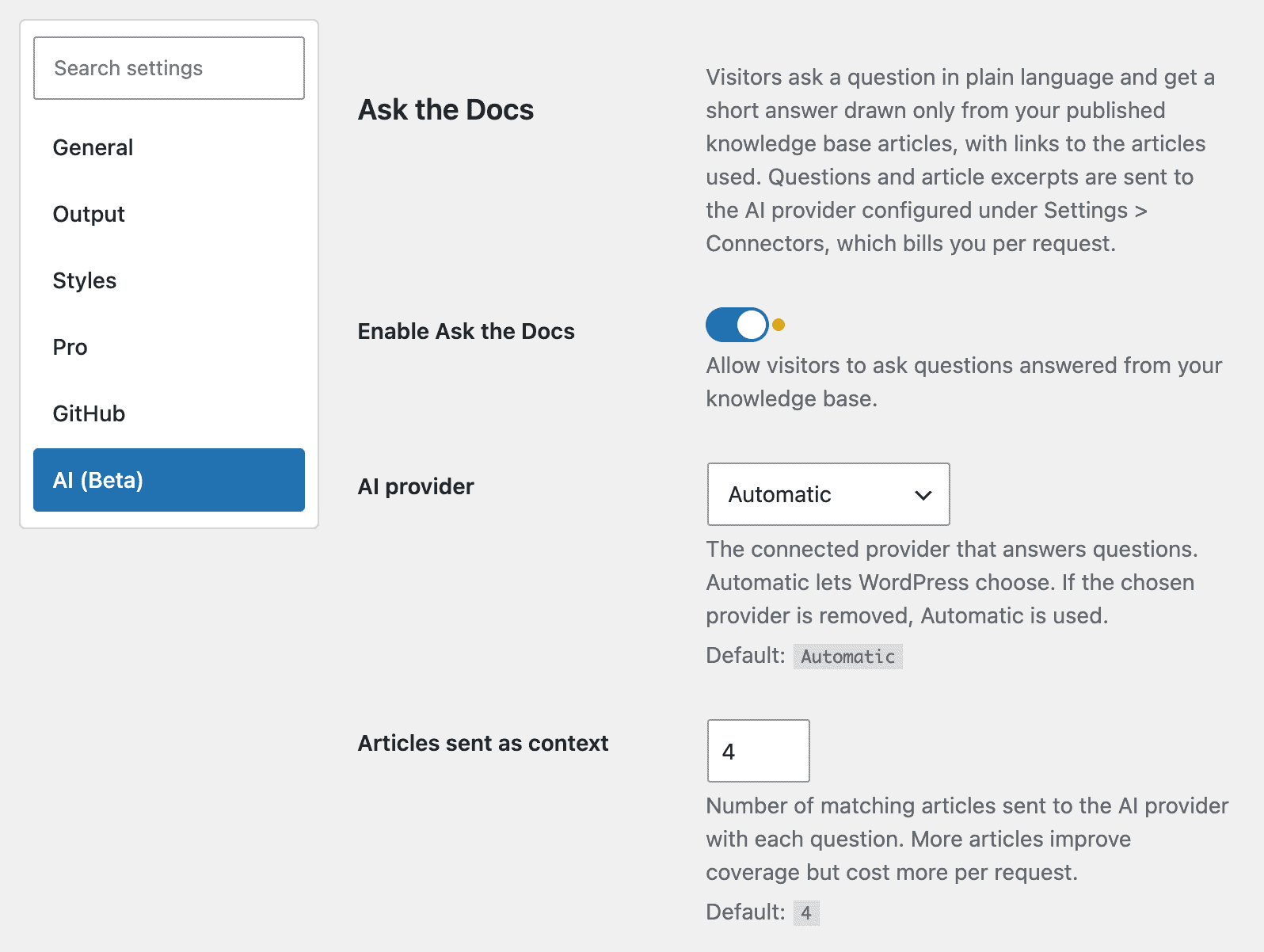
Ask the Docs is a Pro feature. It takes a visitor’s question, finds the most relevant published articles, and sends the question with those articles to an AI provider. The provider answers using only the supplied articles, and Knowledge Base Pro shows the answer with links to its sources. When the articles don’t cover the question, visitors see your fallback message and a link to the search results instead of a guess.
Knowledge Base Pro never sees or stores your API keys. WordPress sends each request through the provider you’ve connected, and the provider bills you.
Where answers appear
Ask the Docs is off by default. Turn it on with Enable Ask the Docs under Knowledge Base → Settings → AI (Beta). Once it’s on, two other settings are enabled by default: Use in knowledge base search boxes and Use in the Help widget.
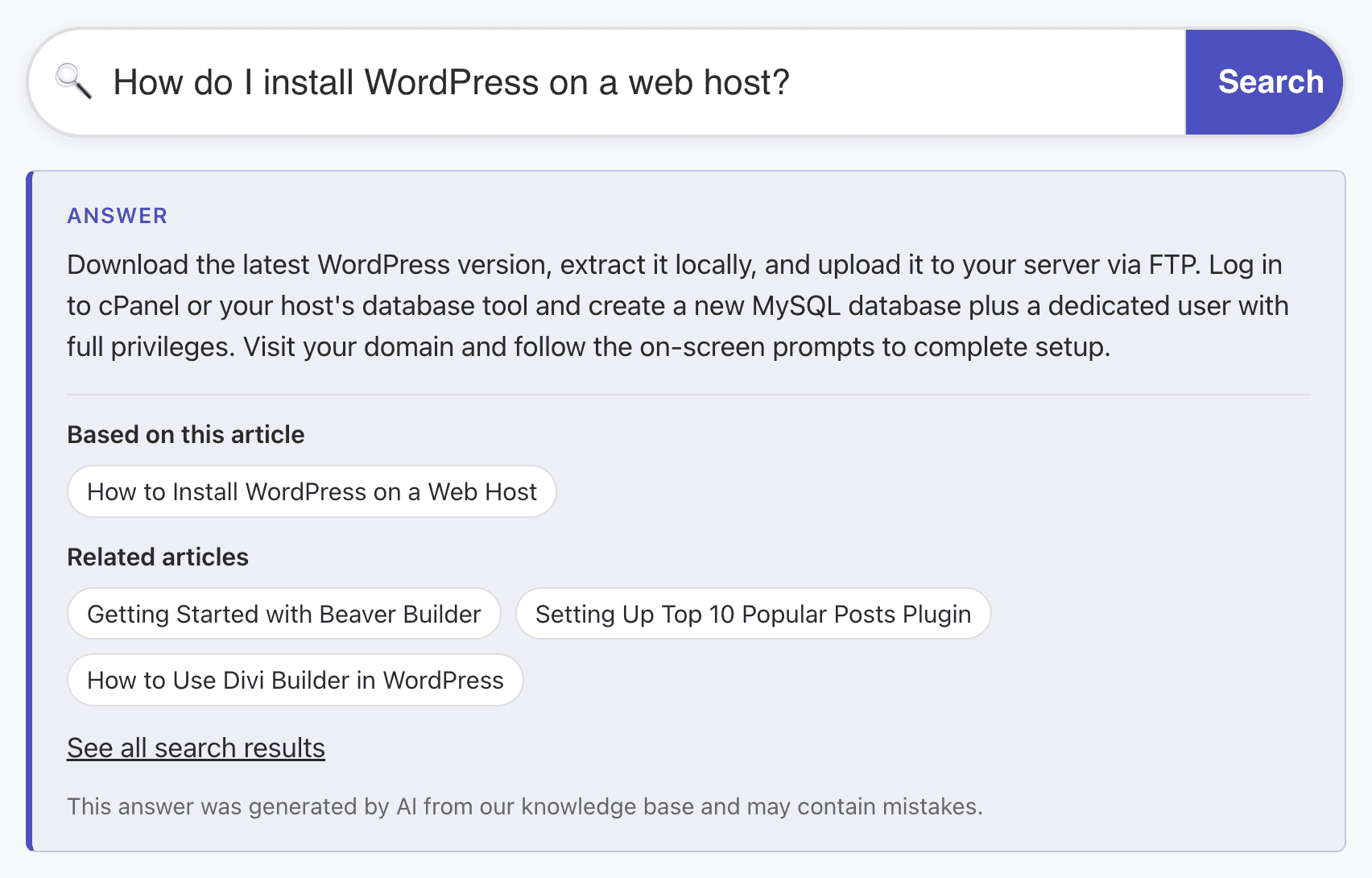
In knowledge base search boxes (the Knowledge Base Search block, the [kbsearch] shortcode and the knowledge base templates), live search suggestions still appear while typing. Pressing Enter asks the question, and the answer appears below the box. On the knowledge base search results page, the first search box answers the search automatically above the results.
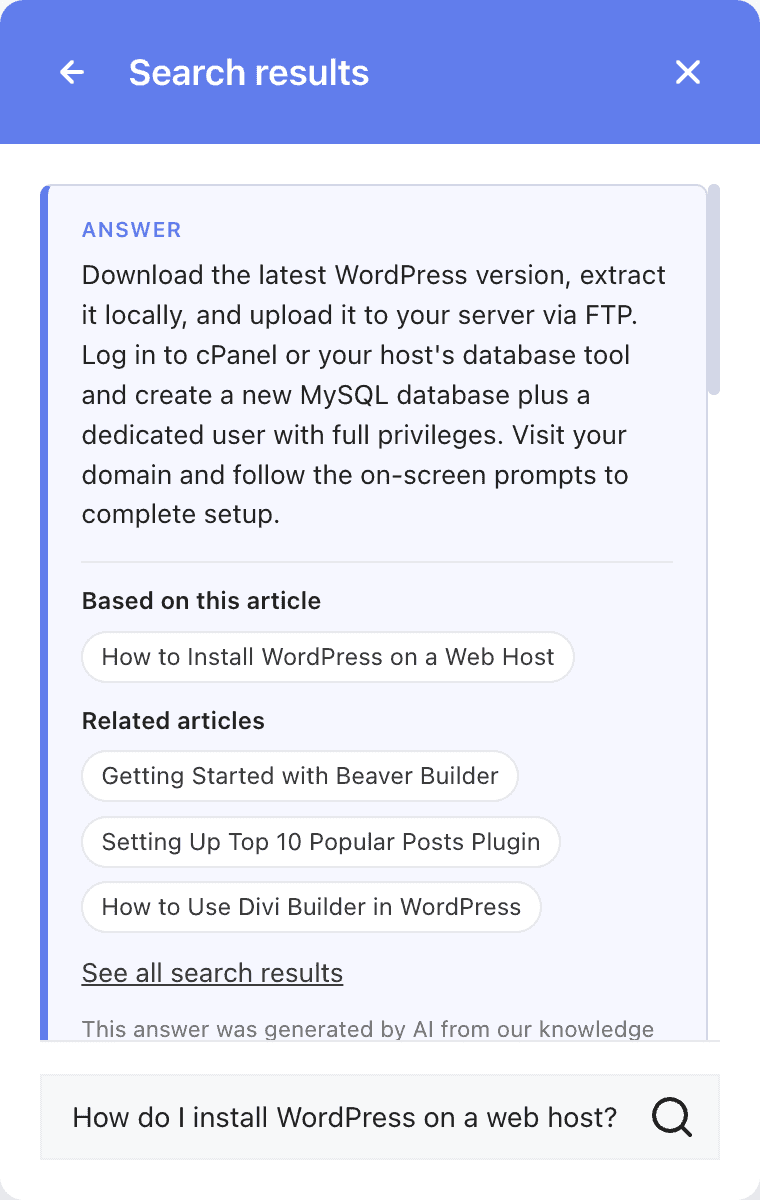
In the Help widget, typing still lists matching articles. Pressing Enter or the search button adds an answer above them. The Help widget itself needs to be enabled for this.
Without JavaScript, or when no provider is available, search boxes submit to the search results page as they always have.
Each answer lists the articles it’s based on, up to three related articles from the same section or with the same tags, and a note that the answer was generated by AI and may contain mistakes. You can hide the source list with Show sources.
How it picks the articles
I didn’t want answers to depend on what a model happens to know, so retrieval and checking happen on your site.
Questions are written in natural language and rarely match every word in an article. Ask the docs searches each keyword separately and ranks articles by the keywords they match, with rarer keywords counting for more. A word like “refund” says more about the topic than your product name, which appears in nearly every article. A keyword that appears in an article’s title counts double. Each search runs through WP_Query, so language plugins and other query filters still apply.
The top matches, four by default and up to eight, are converted to plain text, trimmed to 3,000 characters each by default, and sent with the question. Navigation and listing blocks, such as the knowledge base, related articles and table of contents blocks, are left out of that text. The model is told to answer only from those articles and to return the IDs it used. Knowledge Base Pro then drops any ID that wasn’t in the set it sent, and builds the source links from your own articles.
If no articles match the question, no request is sent.
Keeping provider costs predictable
Every uncached question is a paid request to your provider, so the limits matter as much as the answers.
Answers are cached for a day. The same question, ignoring case, spacing and trailing punctuation, gets the cached answer. Publishing, updating or deleting an article clears cached answers, as does changing the provider, answer length, number of context articles or maximum characters per article. If two visitors ask the same uncached question at the same moment, the second request waits for the first answer instead of paying for another.
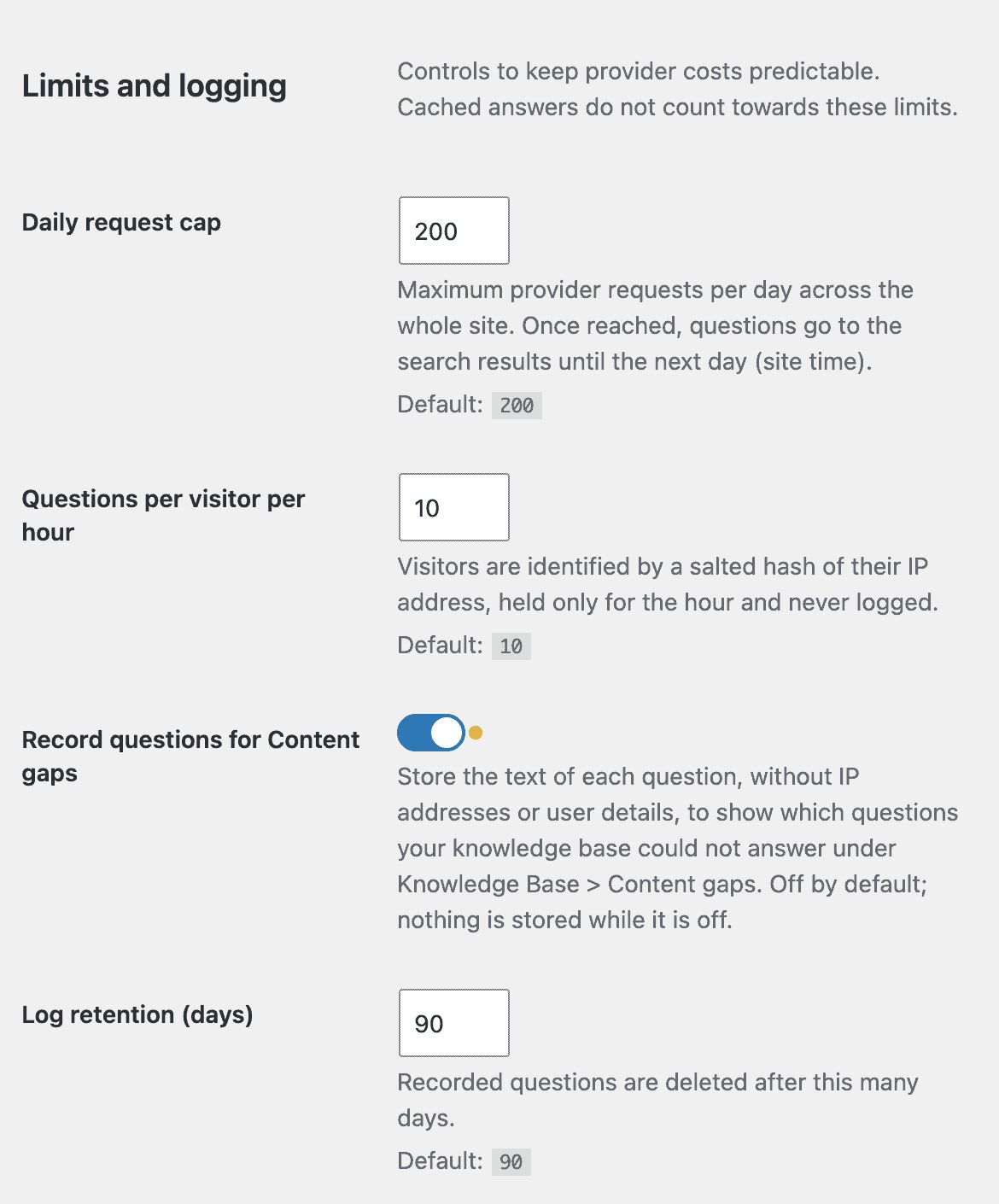
A daily request cap of 200 applies across the site by default. Once this is reached, search boxes work as plain search forms until the next day in your site’s time zone.
Each visitor can ask 10 questions an hour by default. Visitors are identified by a salted hash of their IP address, kept only for that hour and never logged. When a visitor reaches the limit, their next question goes to the search results.
Cached answers don’t count toward either limit.
Requests must come from your site and from a browser. The endpoint refuses requests from other origins, and from bots and scripts that identify themselves, before any provider request is made. A determined script can fake both, which is why the daily cap remains the cost limit.
If your knowledge base gets a handful of searches a day, the defaults leave plenty of room. If it gets thousands, set the daily cap to fit your provider budget before you enable the feature, because every search box on the site starts asking as soon as you do.
The Content gaps report
Questions your knowledge base couldn’t answer tell you what to write next. Turn on Record questions for Content gaps (off by default), and Ask the Docs stores each question’s text. It doesn’t store IP addresses or user details.
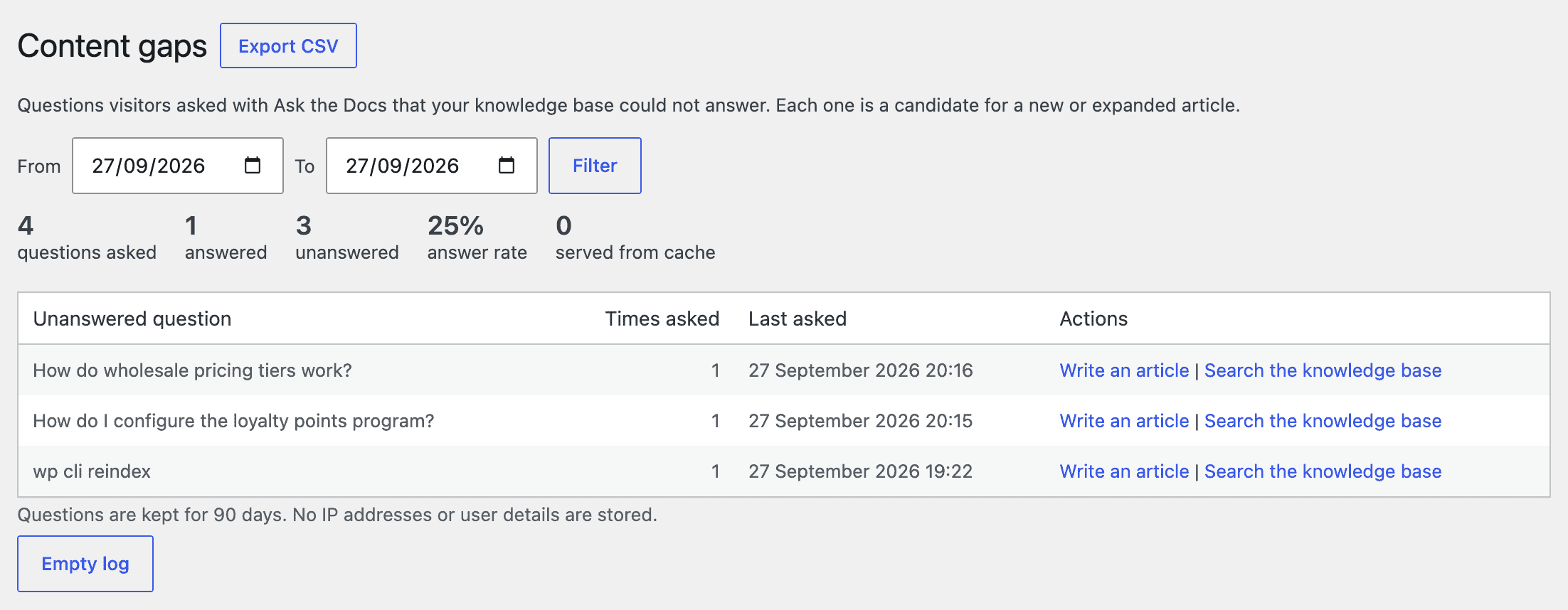
Knowledge Base → Content gaps then lists the unanswered questions, most asked first. Matching questions are grouped, so “How do I export?” and “how do i export” count once, and a visitor repeating a question within the hour is counted once. The menu only appears while recording is on.
For the dates you select, the report shows how many questions were asked and answered, the answer rate and how many answers came from the cache. Each row links to a new article with the question as its title, and to a knowledge base search for it. Export CSV downloads the list. Recorded questions are deleted after 90 days by default, which you can change with Log retention (days).
Privacy
The visitor’s question and excerpts from your articles are sent to your AI provider. Knowledge Base Pro adds suggested text to Settings → Privacy → Policy Guide. Add your provider’s name and a link to its privacy policy.
Uninstalling Knowledge Base Pro deletes the question log, cached answers, and usage counters, regardless of your uninstall settings, even if you keep the free plugin installed.
The Ask the Docs documentation covers every setting, its default and its range. The developer reference lists the filters, including wzkb_ai_visitor_ip for sites behind a proxy or CDN.
Abilities API tools for AI agents
WordPress 6.9 added the Abilities API, a standard way for plugins to describe what they can do so that AI agents, automation tools and other plugins can discover and run it. Knowledge Base now registers four abilities under the shared webberzone category. All of them use the knowledgebase/ prefix, matching the plugin’s slug.
The free plugin adds two read-only abilities:
knowledgebase/search-articlessearches published articles, optionally within a section given by ID or slug. It returns each article’s ID, plain-text title and excerpt, URL and sections, with 10 results by default and up to 50.knowledgebase/get-sectionsreturns the section tree, from the top level or below a parent section ID.
Both need a logged-in user with the read capability, and both respect the wzkb_rest_route_permission filter that controls the matching REST routes.
Pro adds two more:
knowledgebase/create-articlecreates a Knowledge Base article and always saves it as a draft. It can assign an existing section, and returns the new article’s ID and edit link. The user needs permission to create Knowledge Base articles, and to assign sections when one is supplied. An agent can prepare the draft; a person still decides what gets published.knowledgebase/askreturns an Ask the docs answer with its sources. It’s registered only where Ask the docs loads, so it needs WordPress 7.0, and it only answers when Ask the docs is enabled and a provider is available. It uses the same cache and limits as the front end and, by default, is limited to logged-in users. Use thewzkb_ai_ability_permissionfilter to change that.
The Knowledge Base Abilities API article has the input and output schemas and examples.
Search fixes
The REST search endpoint ignored its limit parameter. The search results page size was applied to every knowledge base search query, including the one behind /wzkb/v1/search, so the endpoint always returned 12 results. The page size now applies only to the main search query and to secondary queries that don’t set their own size. A new wzkb_search_posts_per_page filter changes the results page size from its default of 12.
Search forms could show two lists of suggestions. With Knowledge Base live search turned on and Better SearchOpens in a new window active, both plugins attached suggestions to the same form. Knowledge Base search forms now tell Better Search to leave them alone, which Better Search 4.5.0 and later respect. If you still see two lists, update Better Search.
Pro: Help widget searches returned no articles with Better Search active. The widget now asks Better Search to handle its search, so the results match the search results page. The search box also no longer loses focus while you type, which happened when the widget switched to its search screen.
Other changes in this release:
- Clear Cache on the Tools page and the settings page now also clears cached REST API responses. In Pro, it clears cached Ask the docs answers too.
- The settings repeater’s move and remove button labels used the wrong translation domain, so they couldn’t be translated.
Upgrade notes
Knowledge Base and Knowledge Base Pro now require WordPress 6.9. Update WordPress first if your site is on an older version.
Otherwise, no action is needed. Ask the docs and Content gaps recording are both off until you turn them on. To try Ask the Docs:
- Update WordPress to 7.0 or later.
- Connect an AI provider that supports structured text answers under Settings → Connectors.
- Go to Knowledge Base → Settings → AI (Beta) and set Daily request cap and Questions per visitor per hour to fit your budget.
- Turn on Enable Ask the Docs, and Record questions for Content gaps if you want the report.
If the AI tab says no provider is configured, check the connector and click Check again in the notice. If every question shows the fallback message, check that the connector works on its own. When a provider returns an error, visitors see the fallback message and a link to the search results rather than an error.
If visitors keep searching for answers your articles already contain, Ask the docs is the part of this release to try first. If they’re searching for answers your articles don’t contain yet, the Content gaps report will tell you which ones.